
Purpose and scope
CPQ SmartPack for Digital Commerce is a SmartPack that provides the specific features needed to integrate Experlogix CPQ Web Configurator with Experlogix Digital Commerce. When installed, it enables your customers to launch Experlogix CPQ Web Configurator to configure quotations and to view, modify, and submit quotes to your ERP within WebShop. Once a quote has been submitted, it becomes read-only on the WebShop Account Dashboard, and any status changes you make to the quote status are displayed there. This keeps your customers informed about the progress of their quote.
This article provides a step-by-step guide to installing the CPQ SmartPack for Digital Commerce app.
Current support
We currently support integrating CPQ SmartPack for Digital Commerce with the following ERPs:
-
Microsoft Dynamics Finance & Operations
Step by step
Assumptions
-
You have purchased the CPQ SmartPack for Digital Commerce. Contact Sales for more information.
-
You are logged into the Management Interface.
-
You have configured your Cloud Connect details so that a connection exists between Digital Commerce and your ERP.
Step 1: Open App Store
Open
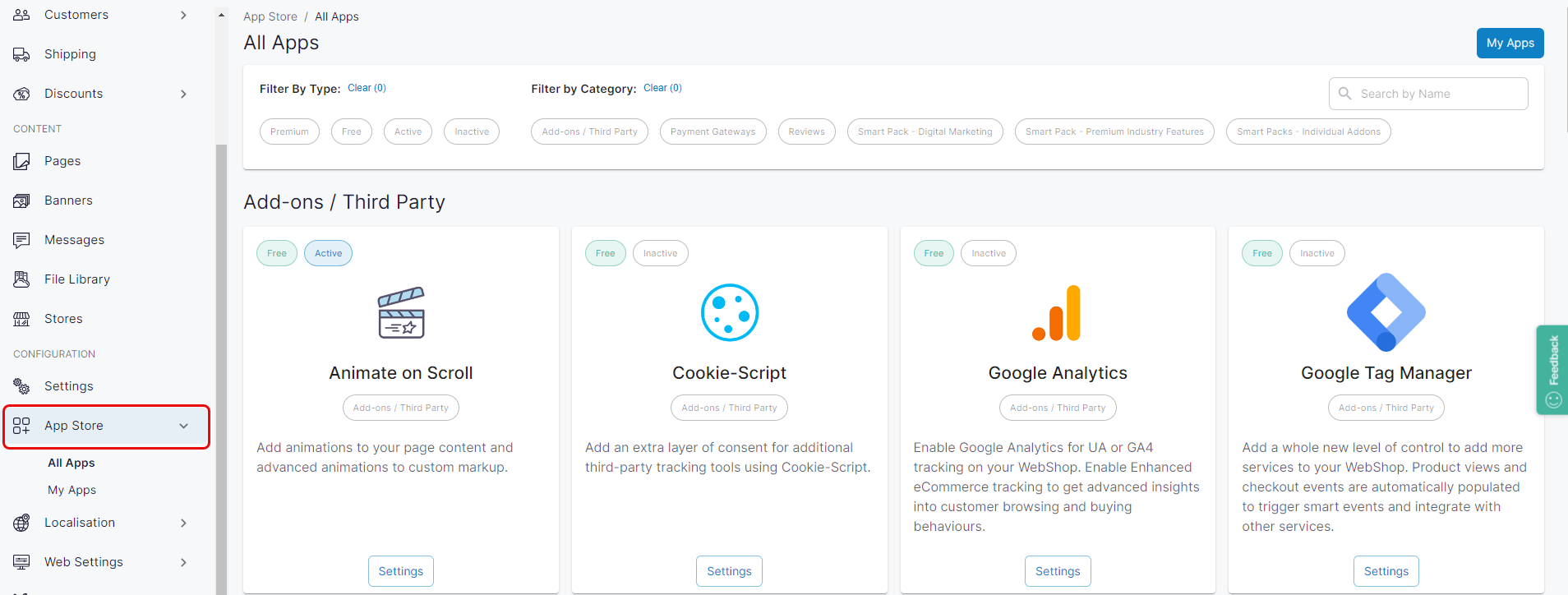
Click App Store under Configuration on the left side menu. The App Store is displayed.
Step 2: Configure and manage
Configure & manage
-
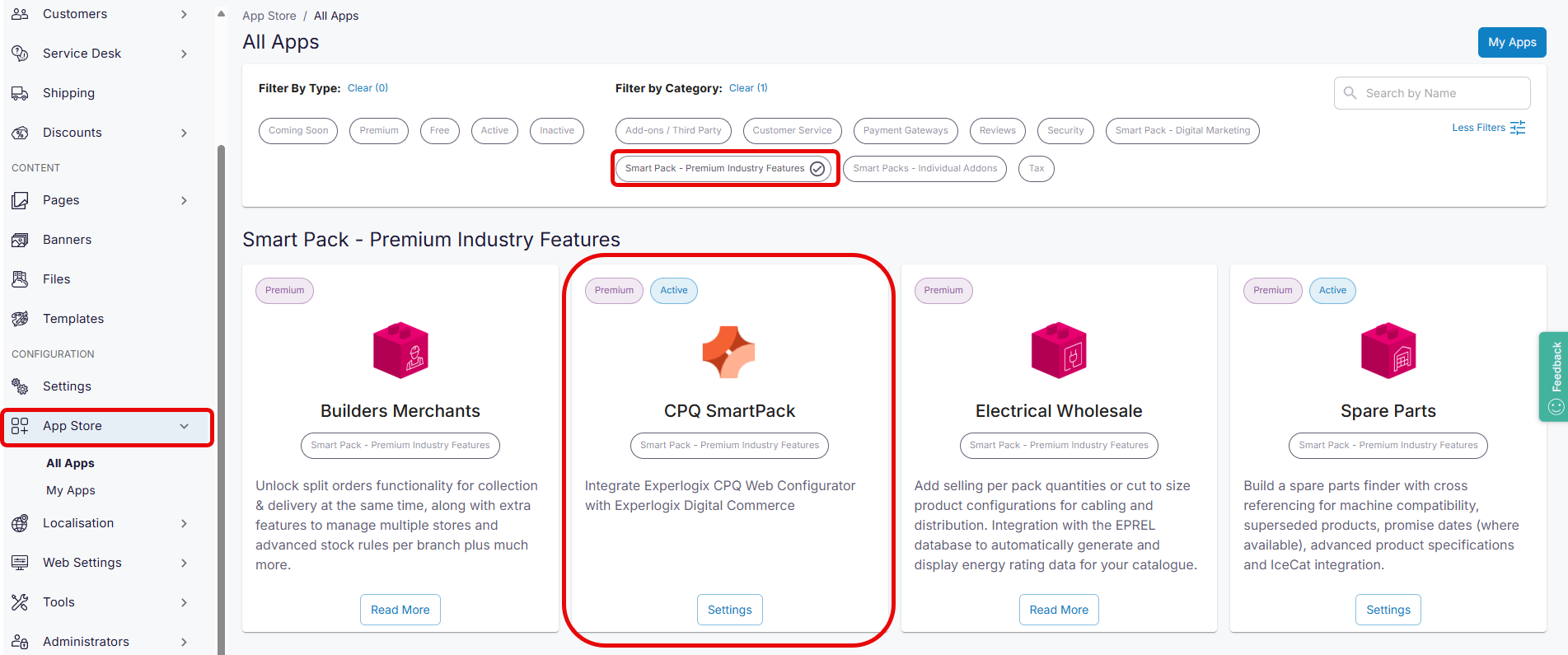
Locate the “SmartPack - Premium Industry Features” category in the App Store. The apps included in this category are Premium apps, available as part of our SmartPack range.
-
Select Settings under the app that you wish to configure and activate.
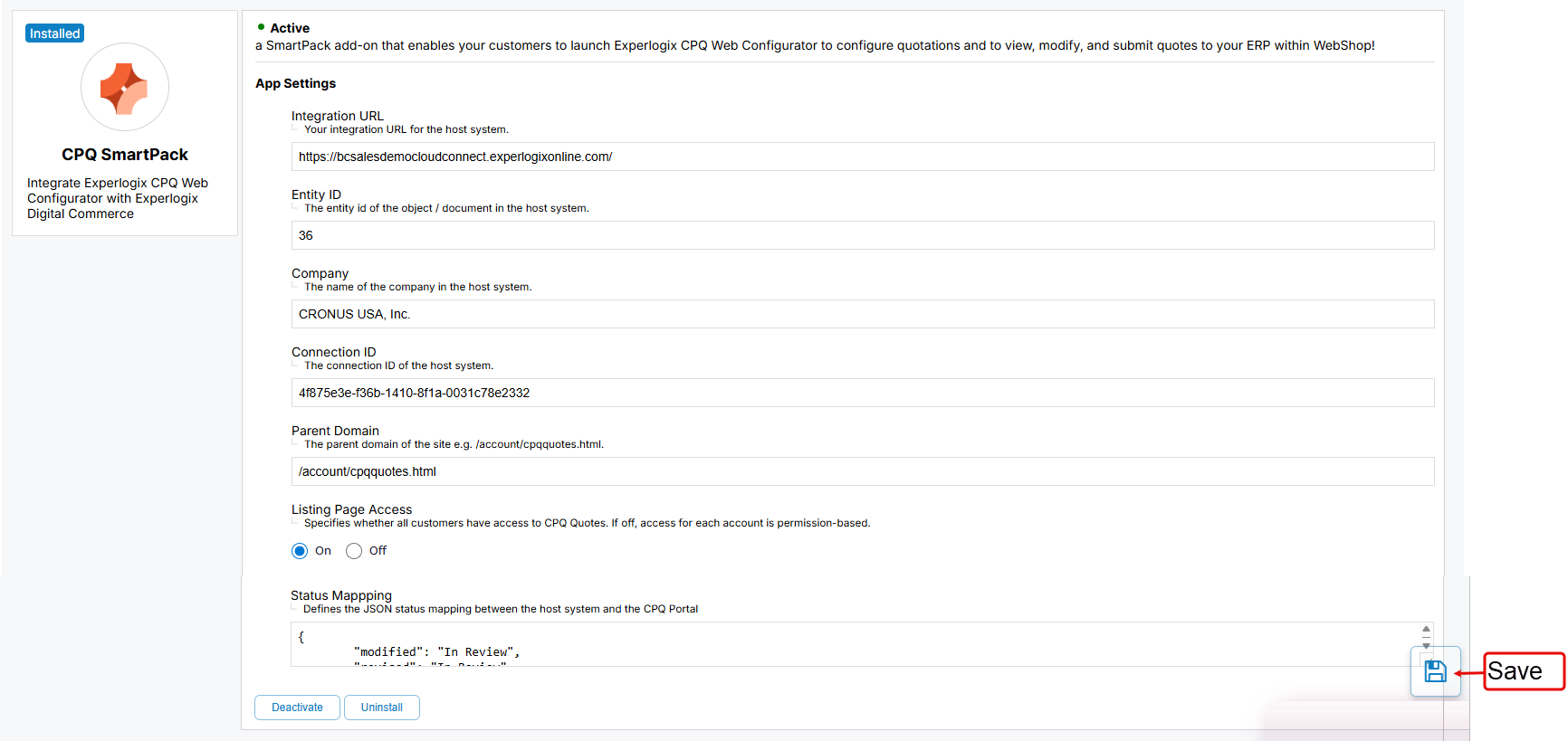
Data required
|
Field name |
Required |
Description |
|---|---|---|
|
Integration URL |
Yes |
URL for your host system Note 1 |
|
Entity ID |
Yes |
Data object that contains data elements required to use CPQ SmartPack functionality; for example, in Microsoft Finance and Operations, the entity used is typically SalesQuotationHeaderEntity. |
|
Company |
Yes |
Company name in your ERP Note 1 |
|
Connection ID |
Yes |
Host’s connection ID Note 1 |
|
Parent domain |
Yes |
Suffix for where your CPQ SmartPack portal is hosted. It is used in different scenarios; for example:
|
|
Listing Page Access |
Yes |
By default, this is set to “Off”. Select “On” if you wish all your customers to see the CPQ Quotes menu option in the WebShop Account Dashboard. Select “Off” if you do not wish all your customers to see the CPQ Quotes menu option in the WebShop Account Dashboard.Note 2 |
|
Status Mapping |
Yes |
Contains a JSON mapping of statuses that are retrieved from the ERP for a particular quote and listed on the CPQ listing screen in WebShop. The standard JSON mapping is The JSON mapping has the following format: {“ERP status”: “Visible status in CPQ Quotes listing screen in WebShop”}. Update the standard JSON mapping to include your ERP statuses and the statuses you would like your customers to see on the CPQ Quotes listing screen in WebShop. |
-
Click Activate to complete enabling CPQ SmartPack for Digital Commerce.
Note 1
These details must match those contained in your Cloud Connect settings. See Settings → ERP → CloudConnect for a list of your configured settings.
Note 2
A new field, “CPQ Quotes”, becomes visible under the Permissions tab for each customer once the CPQ SmartPack app is activated.
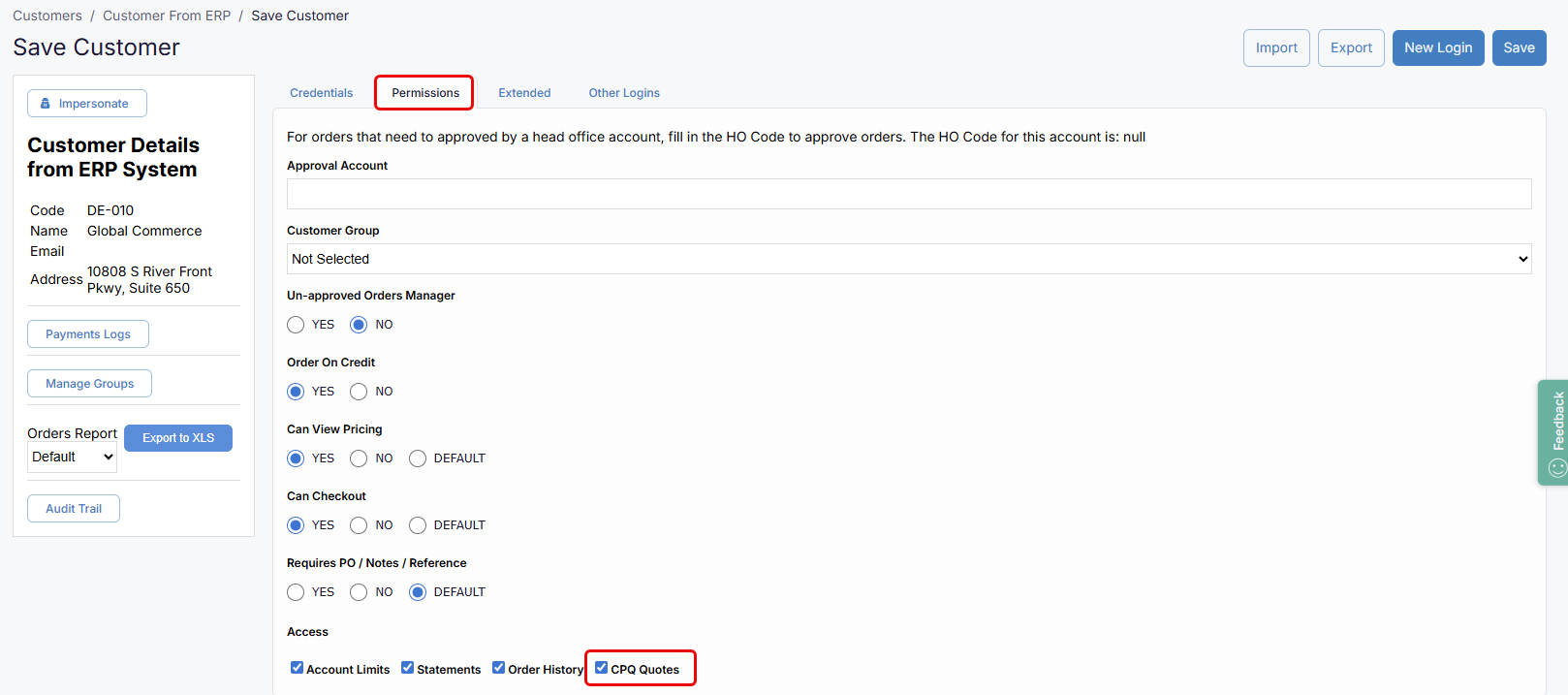
Select “CPQ Quotes” if you wish this customer to see the CPQ Quotes menu option in the WebShop Account Dashboard.
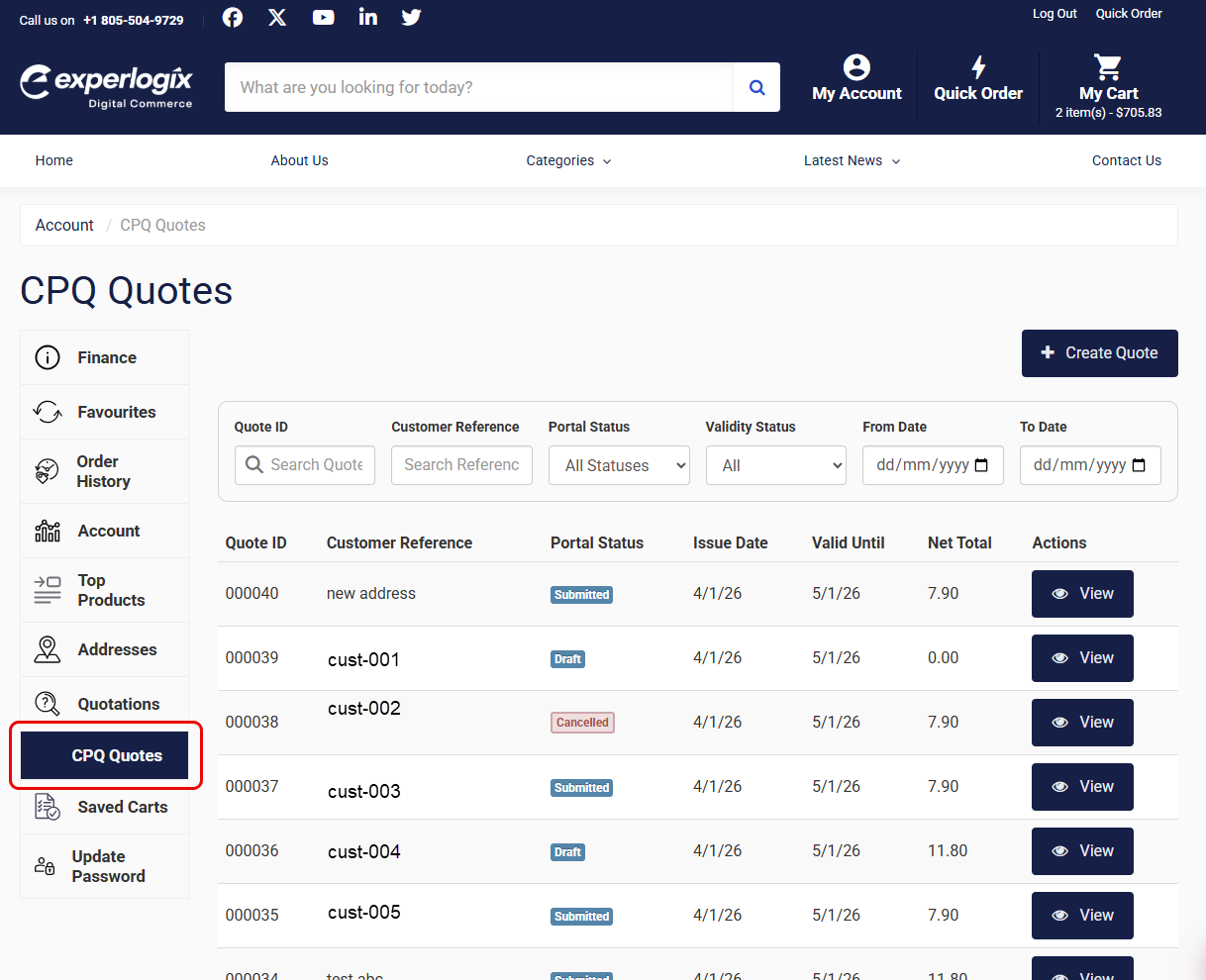
What does my customer see in WebShop?
View in My Account
Once CPQ SmartPack for Digital Commerce has been enabled, there is a menu option in the left side menu in your WebShop’s My Account screen, as shown:
Related content
-
Standard product features: CPQ SmartPack for Digital Commerce