Purpose and scope
CPQ SmartPack for Digital Commerce is a SmartPack that provides the specific features needed to integrate Experlogix CPQ Web Configurator with Experlogix Digital Commerce. When installed and configured, it enables your customers to launch Experlogix CPQ Web Configurator to configure quotations and to view, modify, and submit quotes to your ERP within WebShop. Once a quote has been submitted, it becomes read-only on the WebShop Account Dashboard, and any status changes you make to the quote status are displayed there. This keeps your customers informed about the progress of their quote.
This article provides a step-by-step guide to creating and managing a CPQ Quote.
Current support
What’s included in this article is currently supported in Microsoft Dynamics Finance & Operations.
Tasks [Quote Listing screen]
Assumptions
-
You have purchased and enabled the CPQ SmartPack for Digital Commerce. Contact Sales for more information.
-
Your customer (referred to as ‘you’ for the rest of this article) has logged into WebShop.
Open Quote Listing screen
Open
-
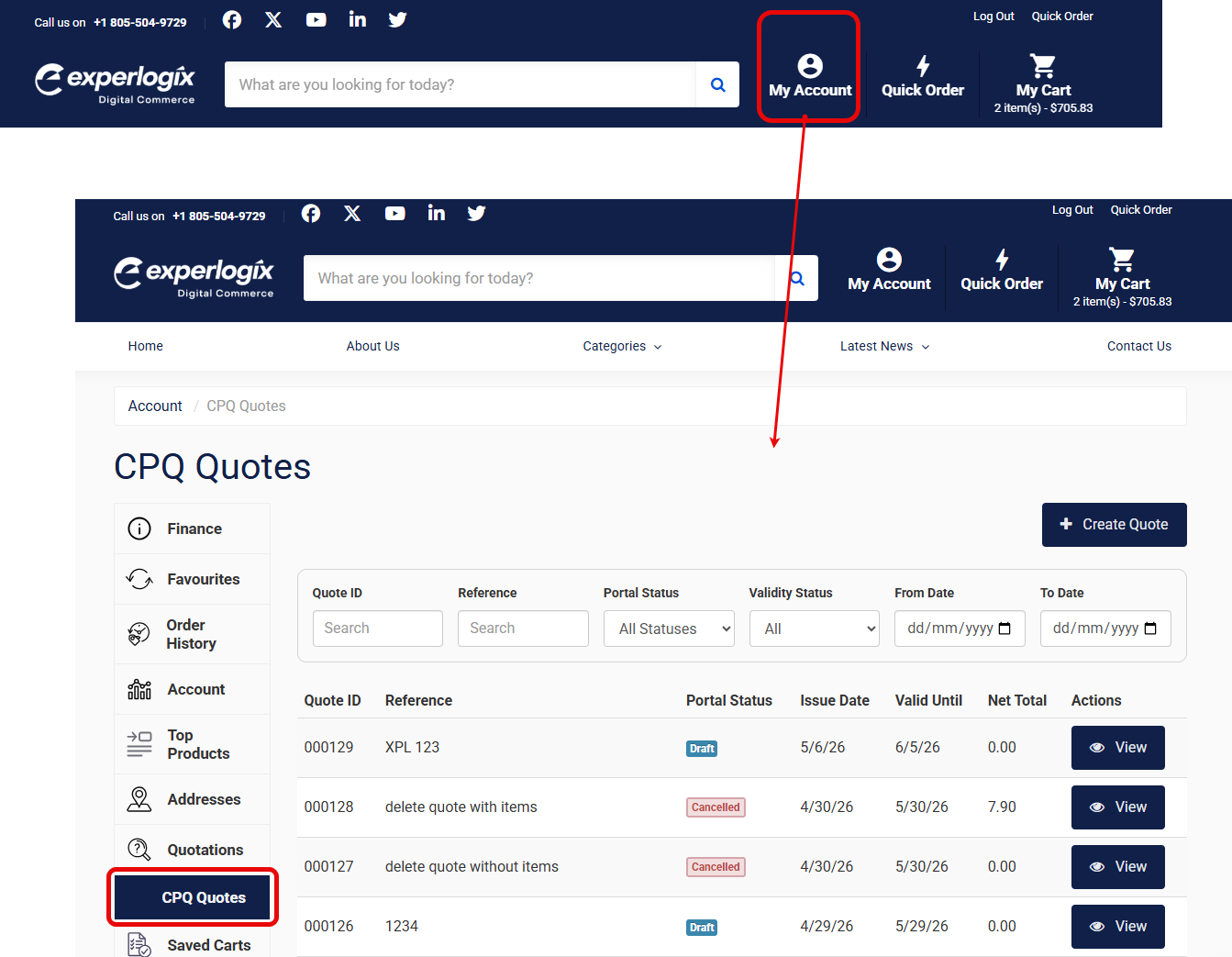
Select My Account from the top menu bar. This opens the WebShop Account Dashboard.
-
Select CPQ Quotes from the side menu bar. This opens the CPQ Quotes listing screen.
Filter and search for a quote
Filter and search
-
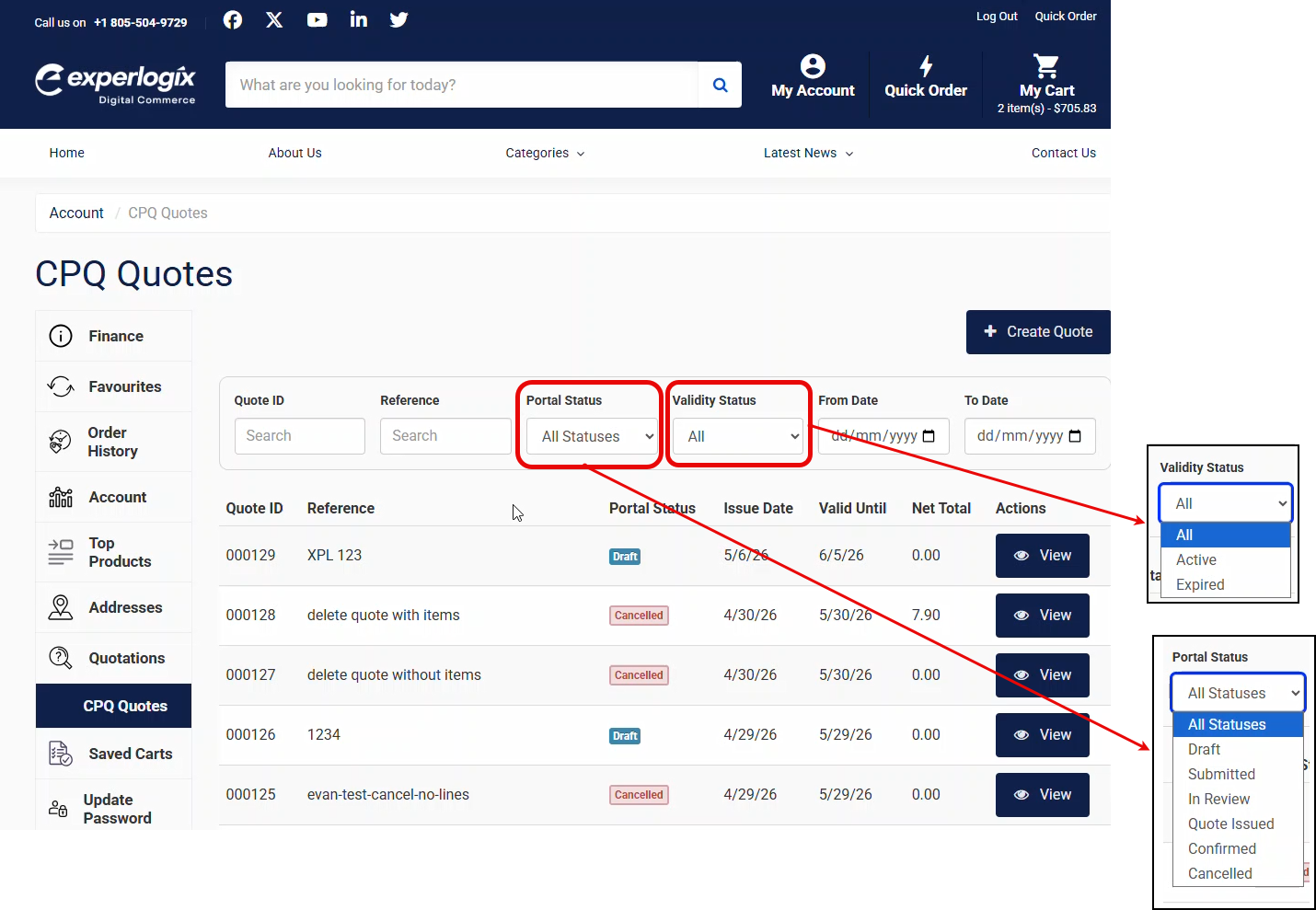
Search for a specific quote using either its Quote ID or Reference. Neither field is case sensitive, and both return quotes that partially match your search term.
-
Filter quotes by Portal Status, Validity Status, or a specific data range.
The results of search and filter queries are displayed in the table below the search and filter bar.
Create a quote
Create
-
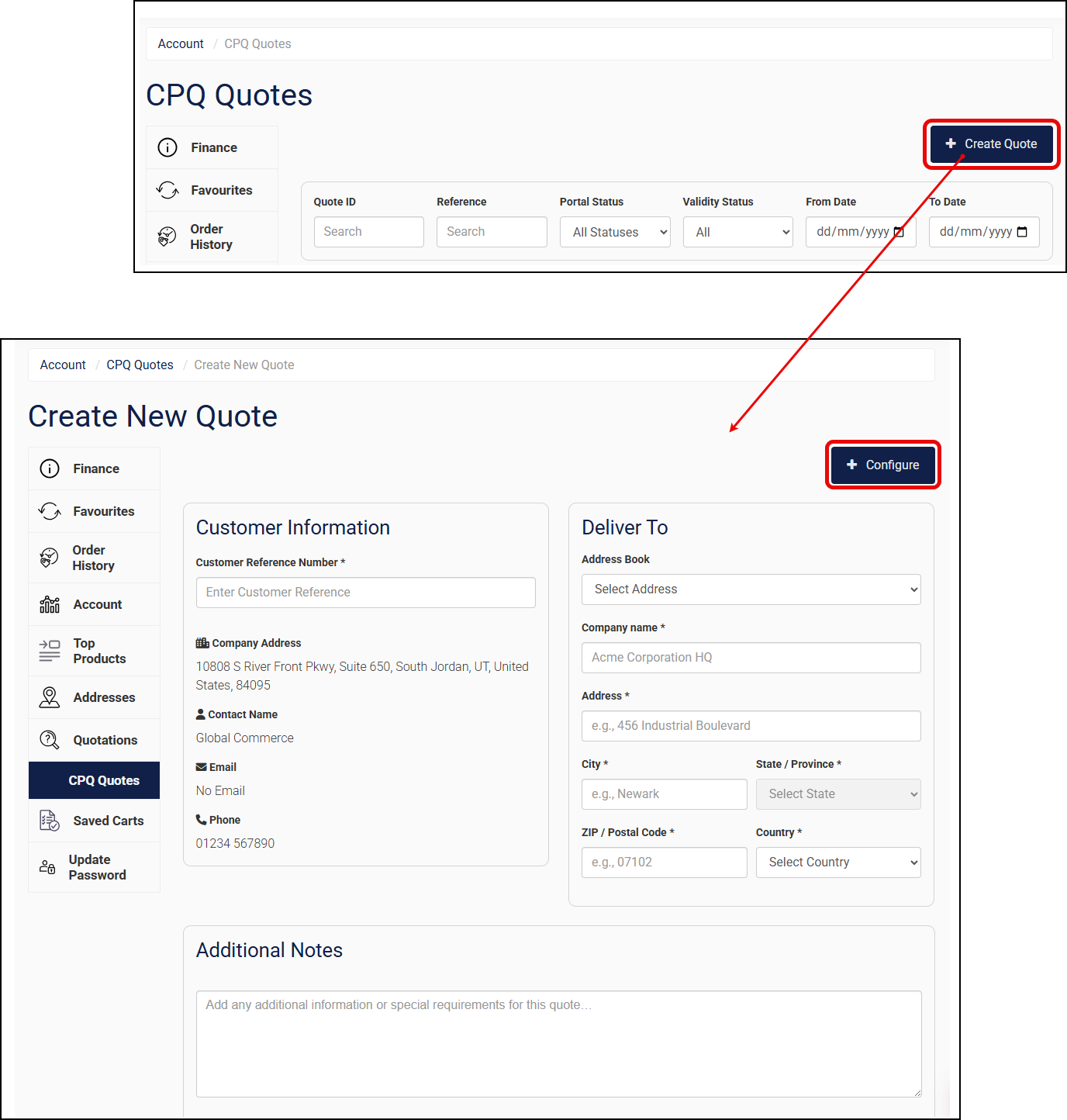
Select Create a quote in the top right to create a new quote. This opens the Create New Quote screen.
-
Complete the fields. Mandatory fields are
-
Customer Reference Number
-
Company name
-
Address
-
-
Select Configure. This saves the quote, with the Portal Status set to Draft, and displays the CPQ Quotes Listing screen. The newly created quote is displayed at the top of the CPQ Quotes Listing screen. The Experlogix CPQ Web Configurator is opened in another tab.
-
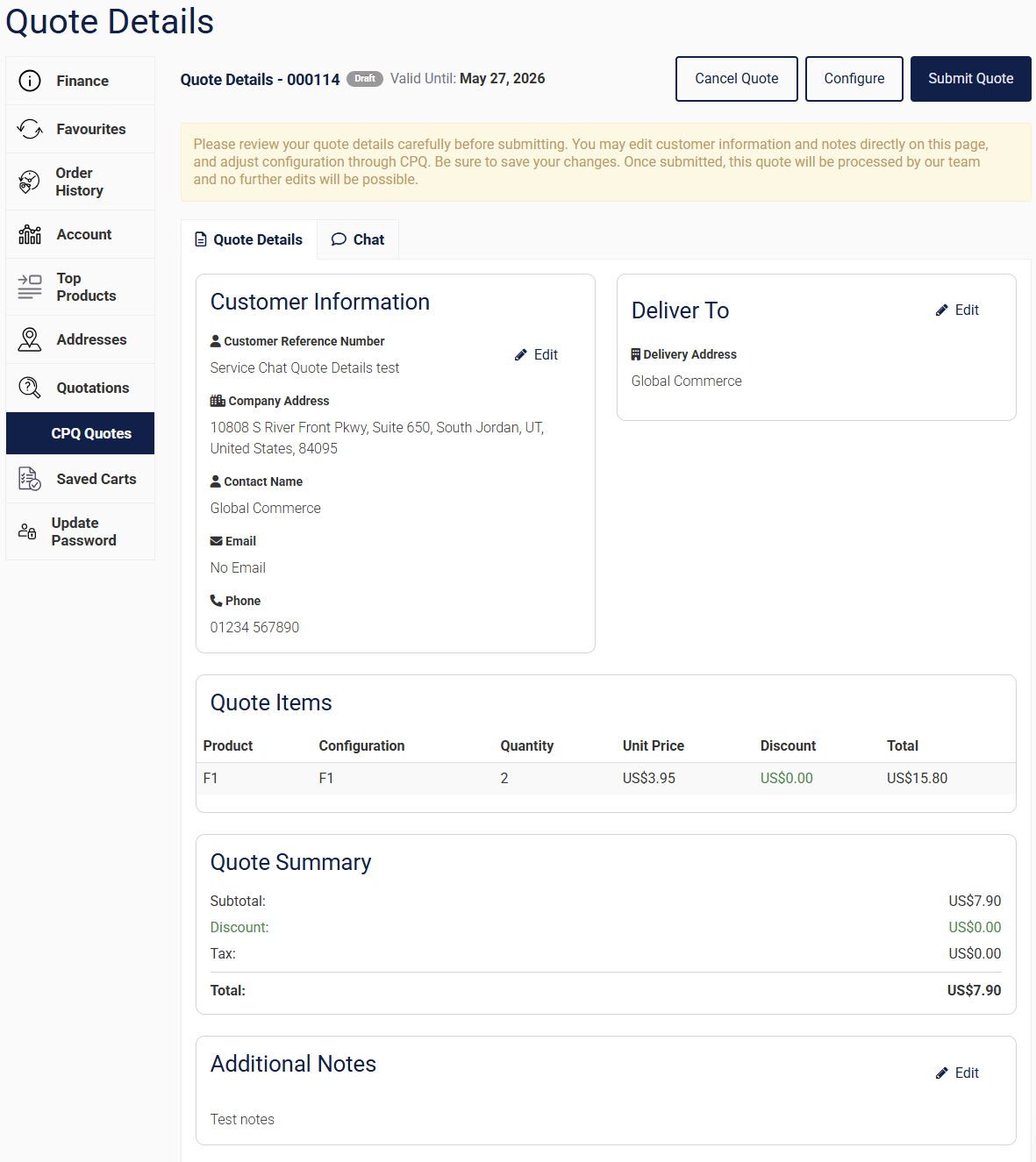
Configure the product in the Web Configurator; all configurations are saved and included on the detailed view for that quote, as shown:
View a quote
View
-
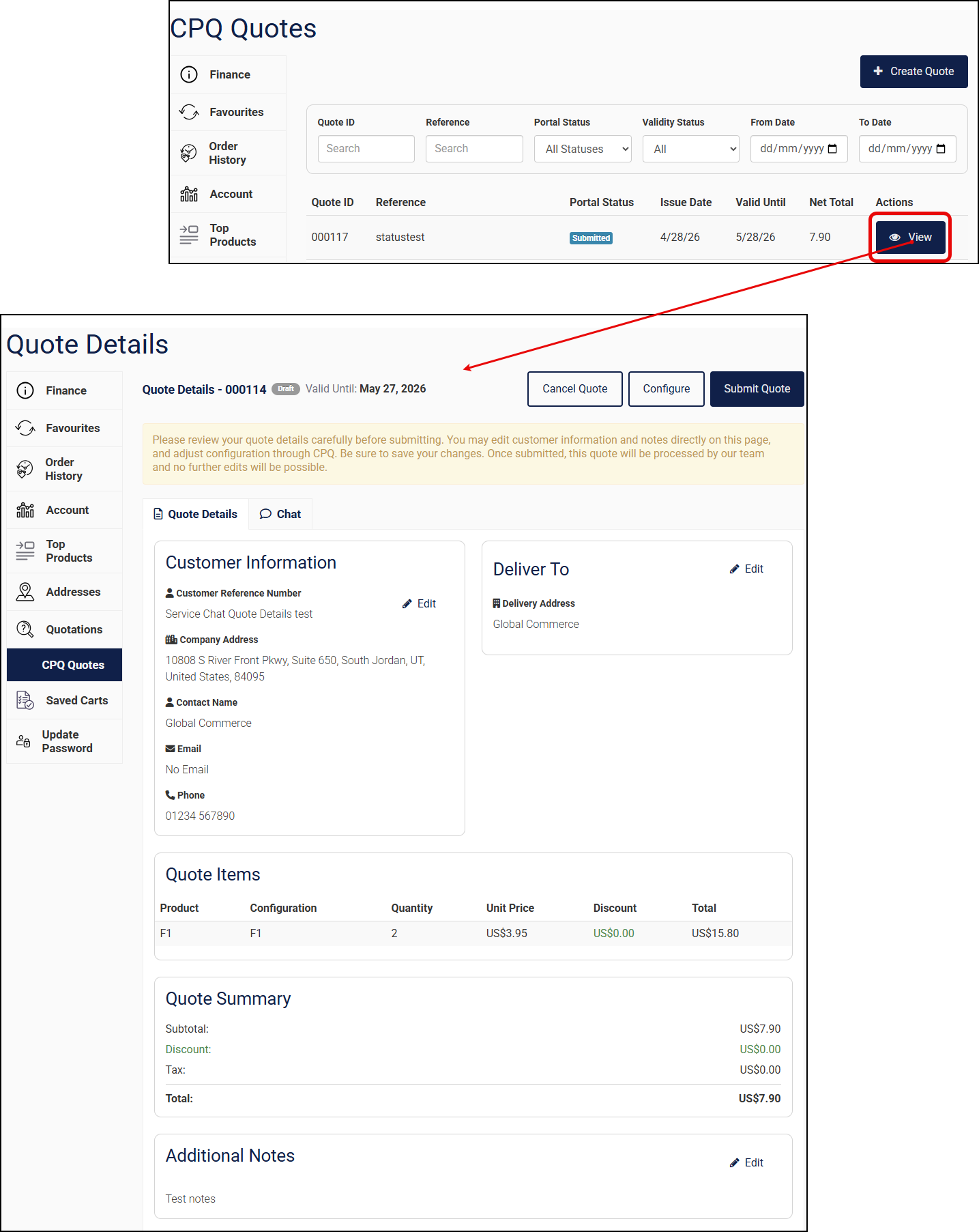
Select View to the right of the quote you wish to view.
Tasks [Quote Details screen]
You can perform the following actions once you have opened the detailed quote view:
-
Edit quote
-
Submit quote
-
Cancel quote
Edit quote
Edit
-
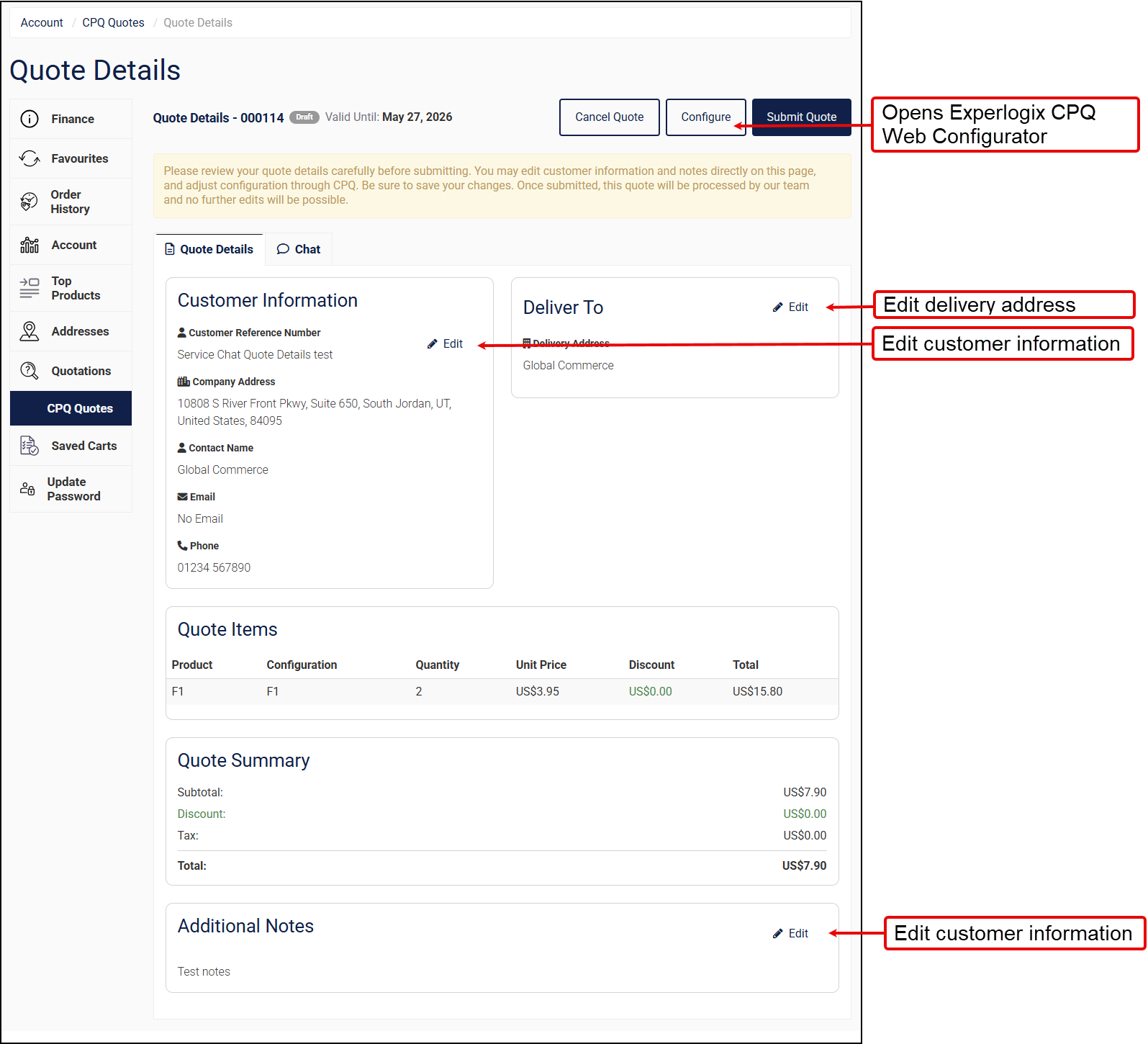
Select Configure to continue configuring your quote using the Experlogix CPQ Web Configurator. Any updates you make are displayed on this screen.
-
Update customer details, delivery address, and/or additional notes to the quote using the Edit option (

Submit quote
Submit
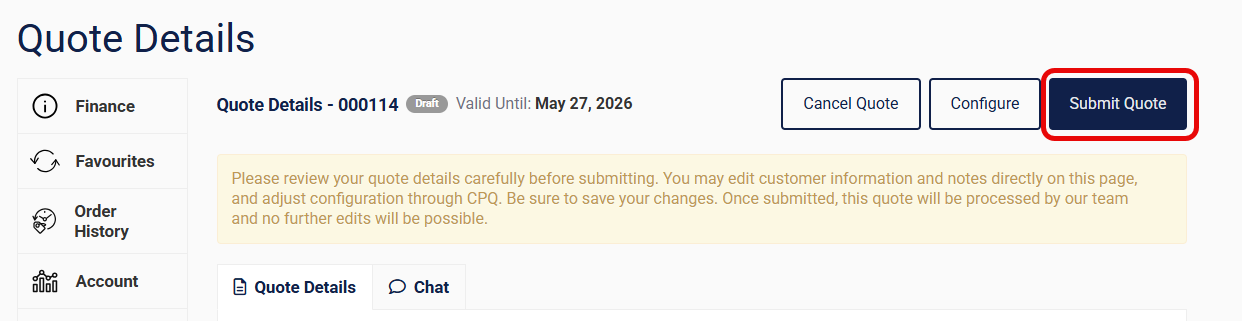
When you are finished configuring products, select Submit Quote to submit it. The quote’s Portal Status is updated to Submitted. This means no additional changes can be made to the quote, as it is now read-only in WebShop. The merchant can provide further status updates. These are displayed on the CPQ Quote Listing screen and in the detailed screen view.
Cancel quote
Cancel
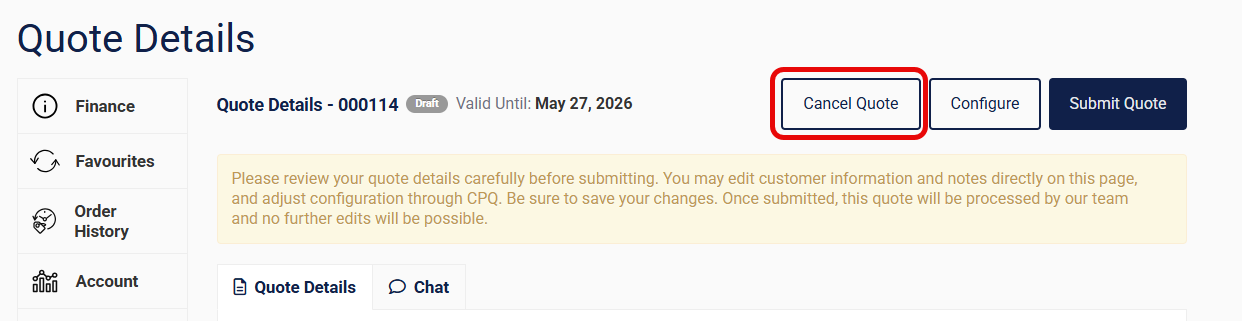
Select Cancel Quote to cancel the order. This updates the Portal Status to Canceled. You are no longer able to make any changes to this quote.
Contact the merchant using Service Desk
Use Service Desk
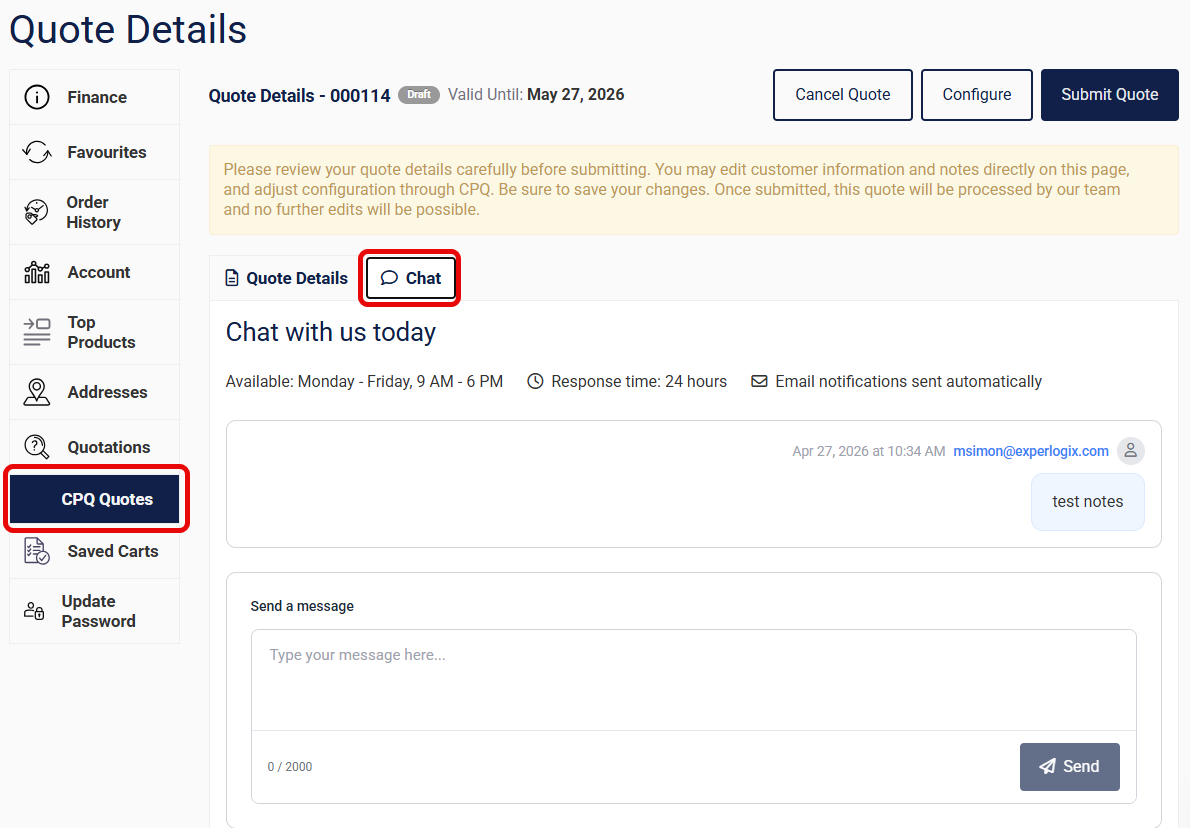
Select Chat to open Service Desk, our in-software online communications channel. Add your message and select Send. This sends your message directly to the merchant. Any responses from the merchant are displayed on this screen. Read Using Service Desk for further information on how to use this feature.