
How do I configure and manage Twilio?

Purpose and scope

The App Store provides access to a set of third-party integrations and Premium add-ons that you can configure and manage. This article provides a step-by-step guide to configuring and managing Twilio, available in the App Store.

Assumptions

  • You have a Twilio account already set up, and it has been configured to your requirements for SMS and email notifications.

  • Any costs associated with using Twilio are your responsibility.

Step by step

Assumptions

  • You are logged into the Management Interface.

  • You have previously installed the app on WebShop - read How to use the App Store for more information.

Step 1: Open App Store

Open

Click App Store under Configuration on the left side menu. The App Store is displayed.
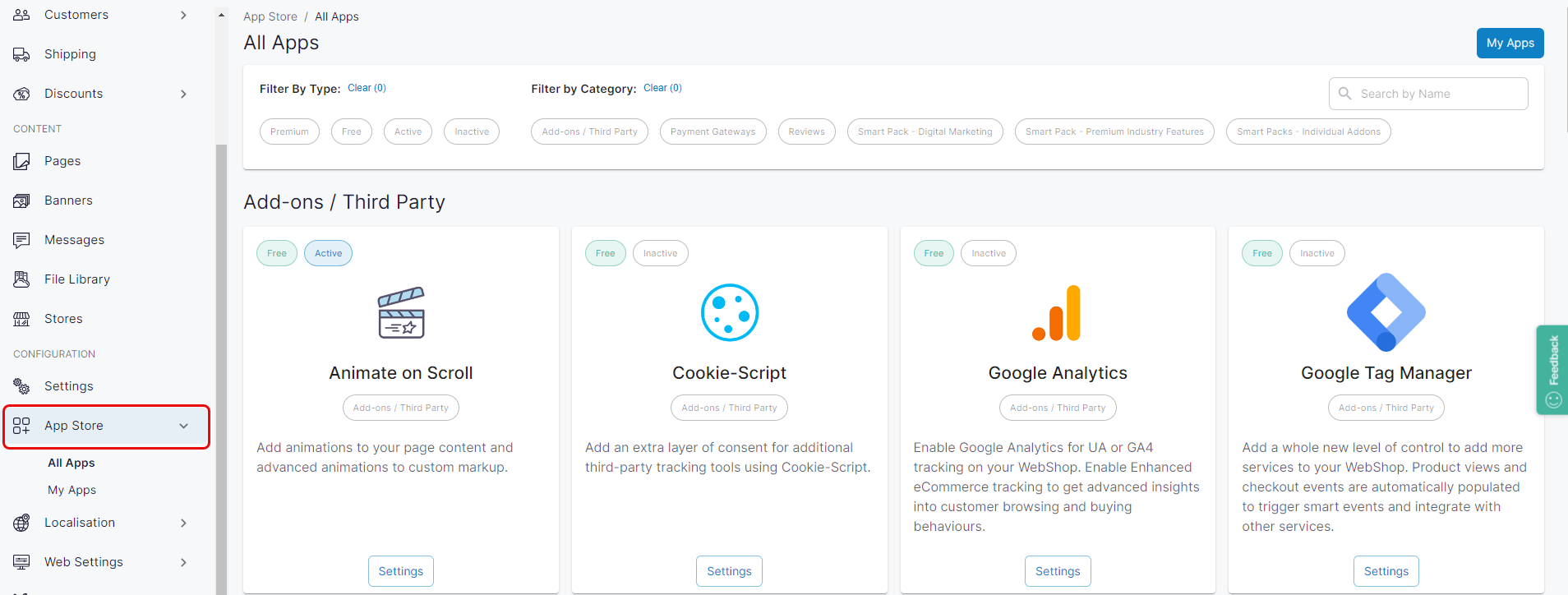
AppStore-OpenPage-Dec23.png


Step 2: Configure and manage

Configure & manage

Locate the Twilio app in the App Store. The apps included in this category are available as part of the standard Digital Commerce product. Each third-party add-on is activated and managed differently. Twilio SMS is used to send SMS messages to your customers so they can use 2FA in WebShop.

Click Settings under Twilio you wish to configure to see what is required to activate it.

To activate it, enter your Account SID, Authentication Token, and Verify Service SID. You can find these details in your Twilio accounts.

Select Activate. This sets up the connection between Twilio and the Digital Commerce platform.

More information