Purpose and scope
Keeping WebShop secure is essential since it provides access to your storefront and product catalog. We have introduced an additional security measure to help you maintain secure access to WebShop. Two-factor authentication (2FA) adds an extra layer of security by requiring you to provide two forms of identification before granting access to the WebShop. The two identification methods required when 2FA is enabled are your password and a code sent to you via SMS or email when you request it. This reduces the risk of unauthorized access to your WebShop, which contains administrative functions and system configurations.
We recommend enabling 2FA to protect your WebShop from potential security breaches.
This article outlines the benefits of using 2FA in WebShop. It provides a step-by-step guide to enabling, disabling, and using it every day.
Benefits
Key benefits of using 2FA are:
-
Restrict access to verified users only.
-
Compliance with many regulations and standards, such as GDPR, HIPAA, and SOC 2, which may be mandated in your region.
-
Reduces the risk of security breaches.
Tasks
Set up
Setup
Assumption
-
You are logged into the Management Interface.
-
You have already set up the Twilio app, so you can use SMS or email as your default 2FA method. Find out how to configure and manage Twilio.
-
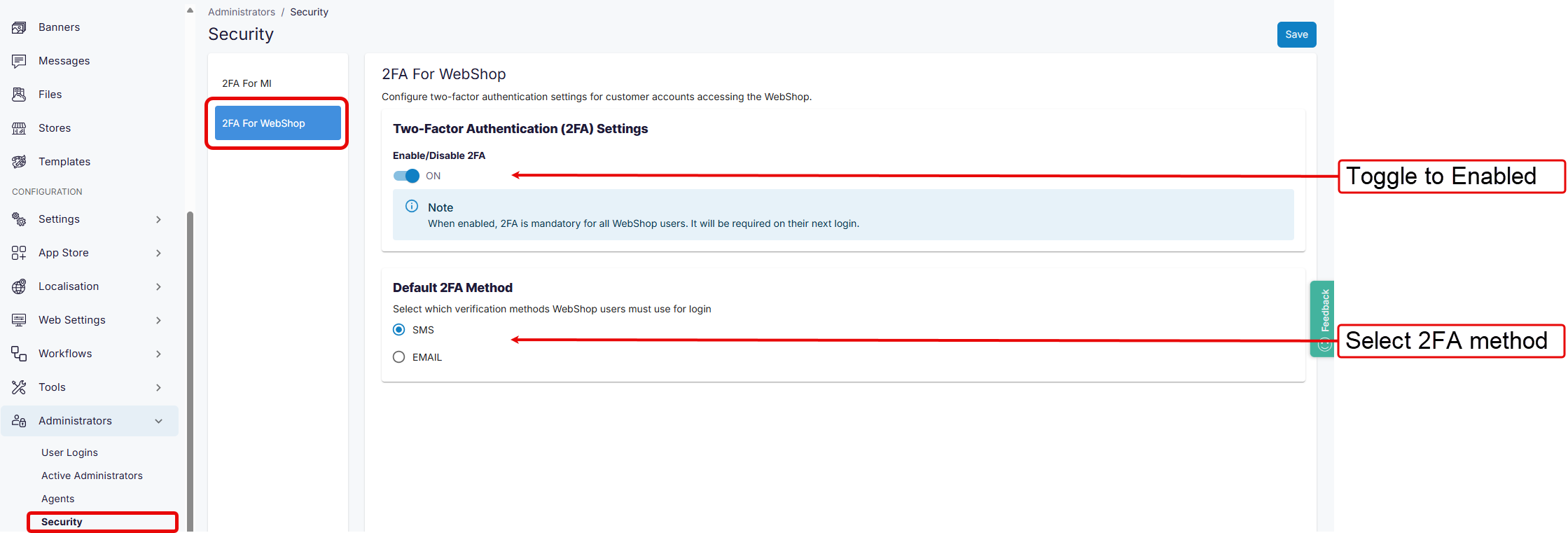
Select Security under Administrators in the left-side menu of the Management Interface.
-
Select “2FA for WebShop”. This opens the configuration screen.
-
Toggle to Enabled, then select whether to send the code by email or SMS.
-
Select Save. This enables 2FA for all customers who log in to your WebShop.
As a customer, log in to WebShop using 2FA for the first time
Login (first time)
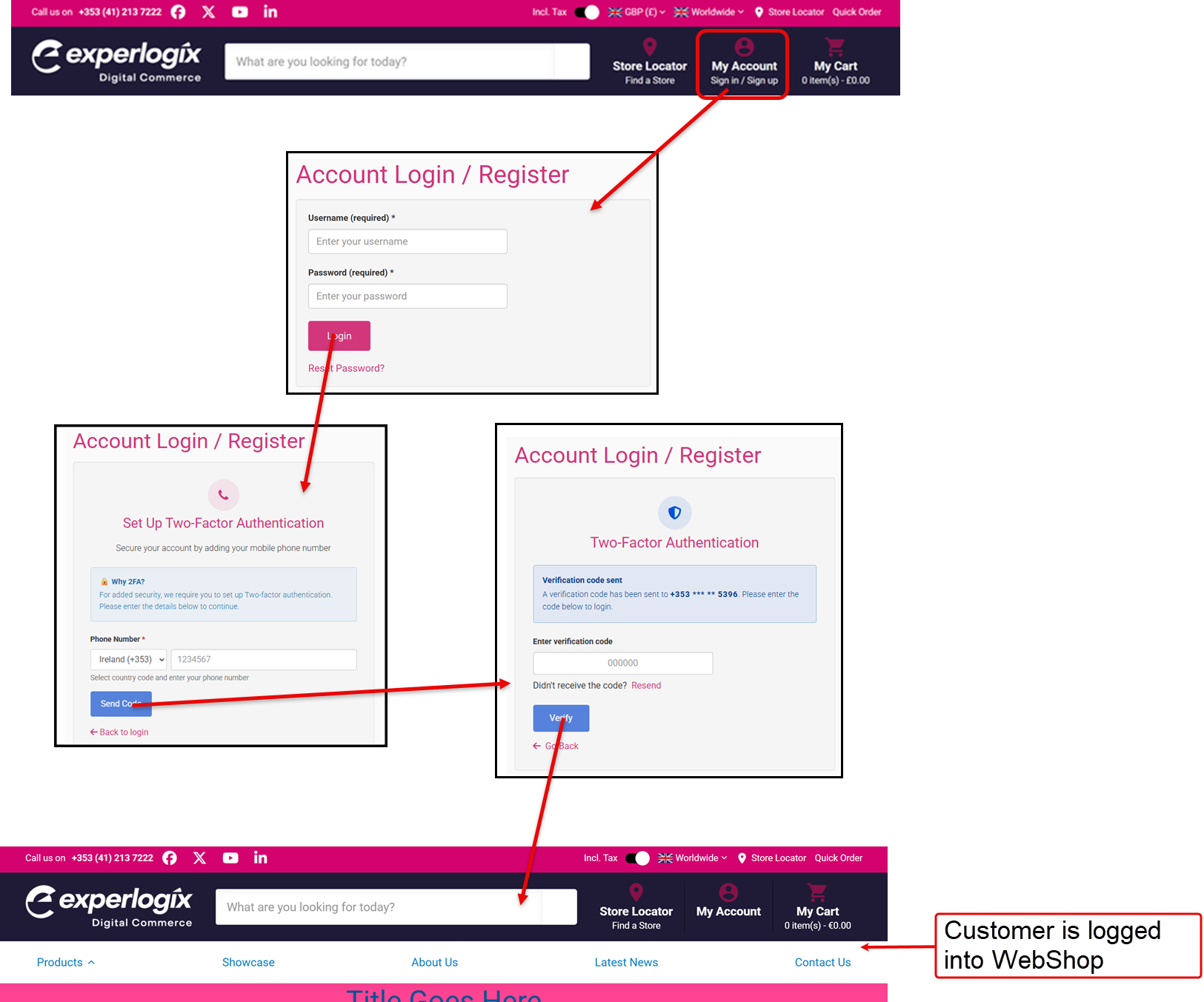
Once 2FA is enabled, all your customers must use it to log in to your WebShop. This ensures that all your customers use the additional layer of security provided by 2FA.
-
Enter username and password, and select Log in. This displays a screen where you set up 2FA by entering your phone number if SMS is configured as the second authentication method. If the email address is configured as the second authentication method, it is automatically retrieved from the Management Interface.
-
Enter phone number or email address, and select Send Code. This sends a code by SMS/email to the phone number/email address entered, and displays the Verify Number screen.
-
Enter the code received, and select Verify. This registers your phone number and opens WebShop on your Dashboard.
Log in to WebShop after the first login
Login (on subsequent logins)
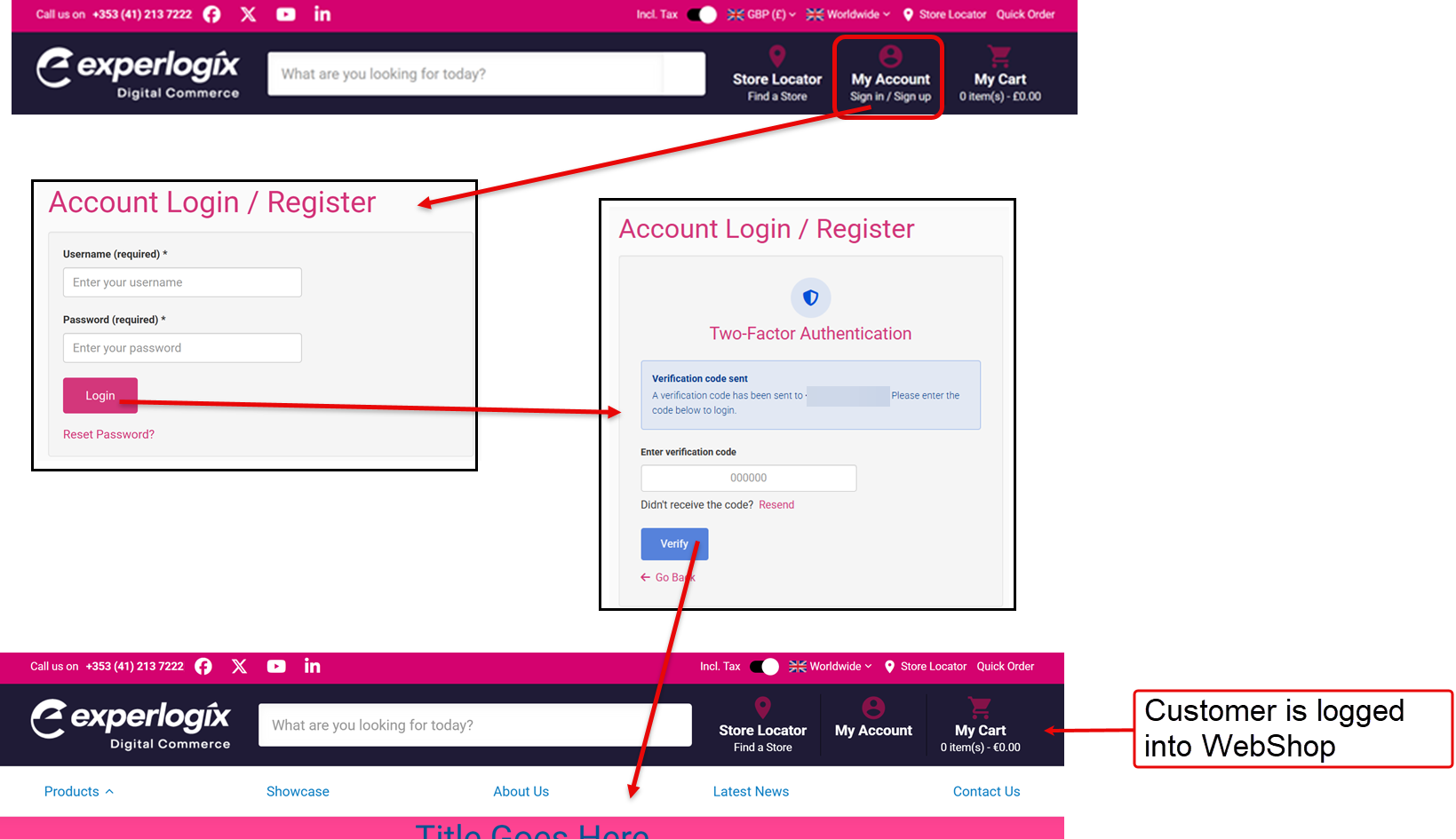
Log in to WebShop with your username and password. This opens WebShop's dashboard.
Disable
Disable
-
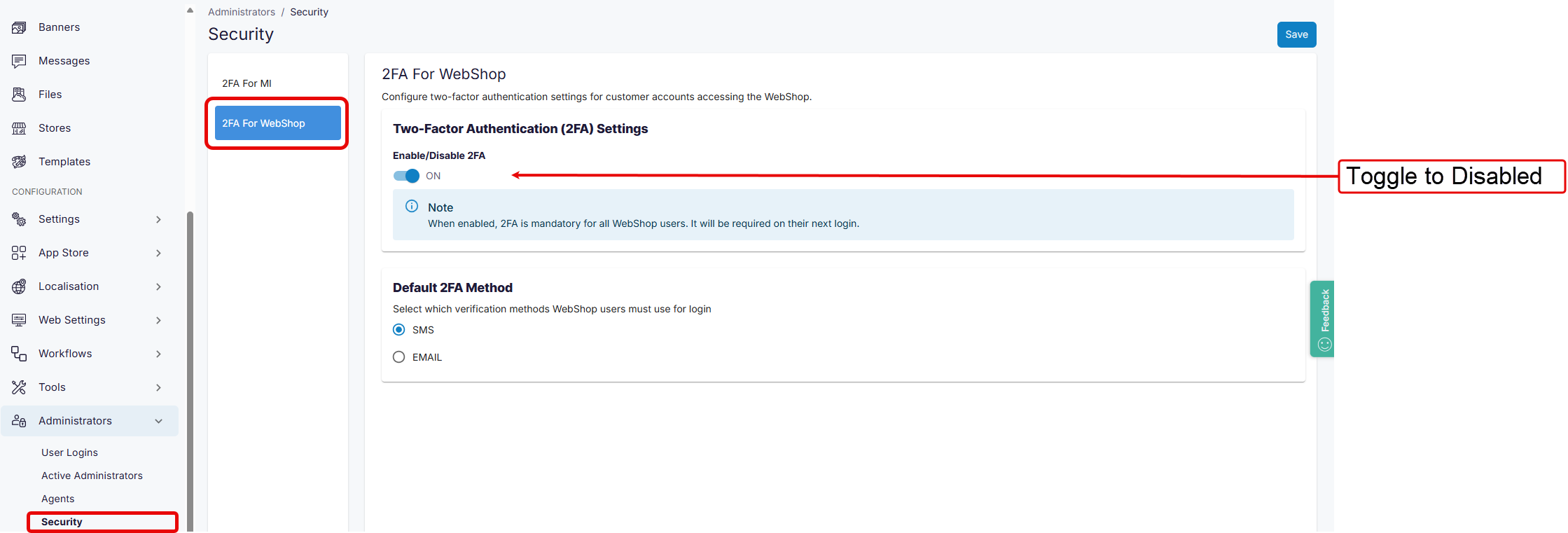
Select Security under Administrators in the left-side menu of the Management Interface.
-
Select “2FA for WebShop”. This opens the configuration screen.
-
Toggle to Disabled, then select whether to send the code by email or SMS.
-
Select Save. This disables 2FA for all customers who log in to your WebShop.