
Purpose and scope
Experlogix Digital Commerce’s integration with Google Merchant Center (GMC) enables you to create a product feed directly from you WebShop for inclusion in Google Shopping’s online storefront. GMC has defined a product taxonomy (see here1 for the latest version). Products listed in your WebShop are mapped to the GMC product taxonomy. However, a product can be listed in numerous WebShop categories (see Using the Product in Category Editor for more information). By default, the primary category for each product listed in the WebShop catalog is contained in Category Tree 1. Should a product be listed in more than one category in WebShop, the primary category is the one mapped to the corresponding GMC category. Of course, you can change the default category mappings to GMC categories that suit your business needs using the features in the Management Interface. Any changes that you make to GMC category mappings are automatically included in your scheduled Google Shopping product feed export.
This article provides a step-by-step guide to
-
View which GMC categories products are currently assigned to
-
Change the default GMC category for a single product
-
Change the GMC category for many products
This feature is only available as part of the Digital Marketing SmartPack. Contact our sales team for more information.
Introducing terms and concepts used in this article
|
Term |
Definition |
|---|---|
|
(GMC), a service offered by Google that allows you to add your product information to Google. Once this information is uploaded to Google, the service makes it available to your customers when they search for your products using Google. |
|
|
Product feed |
a structured description of your products that can be shared with other channels. |
More information
Assumptions
-
You have an existing integration between Experlogix Digital Commerce Platform and Google Merchant Center.
-
Your Google Shopping product feed has been set up.
-
Any costs associated with Google Merchant Center are your responsibility.
-
You have logged into the Management Interface.
View which GMC categories products are currently assigned to
Cateegory view
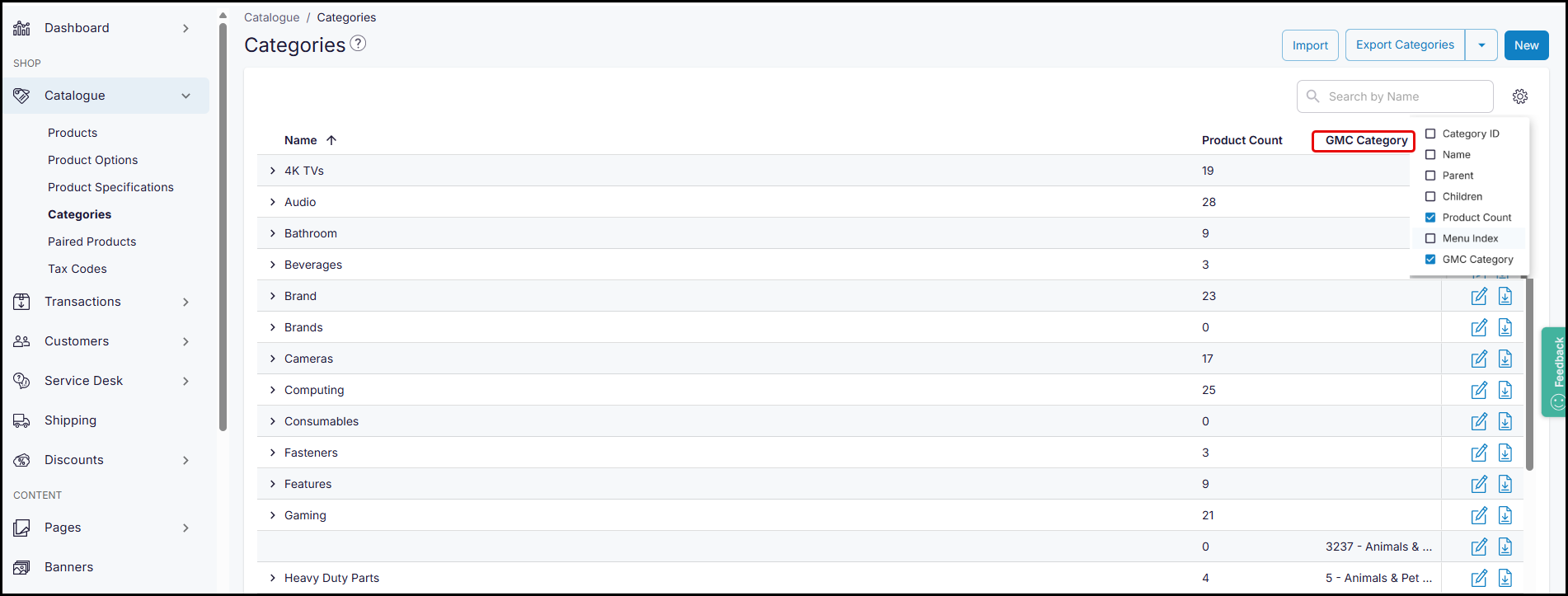
You can view which, if any, GMC category you have assigned a product to on the Categories screen in the Management Interface.
Step by step
To view which GMC categories each product is currently assigned to:
-
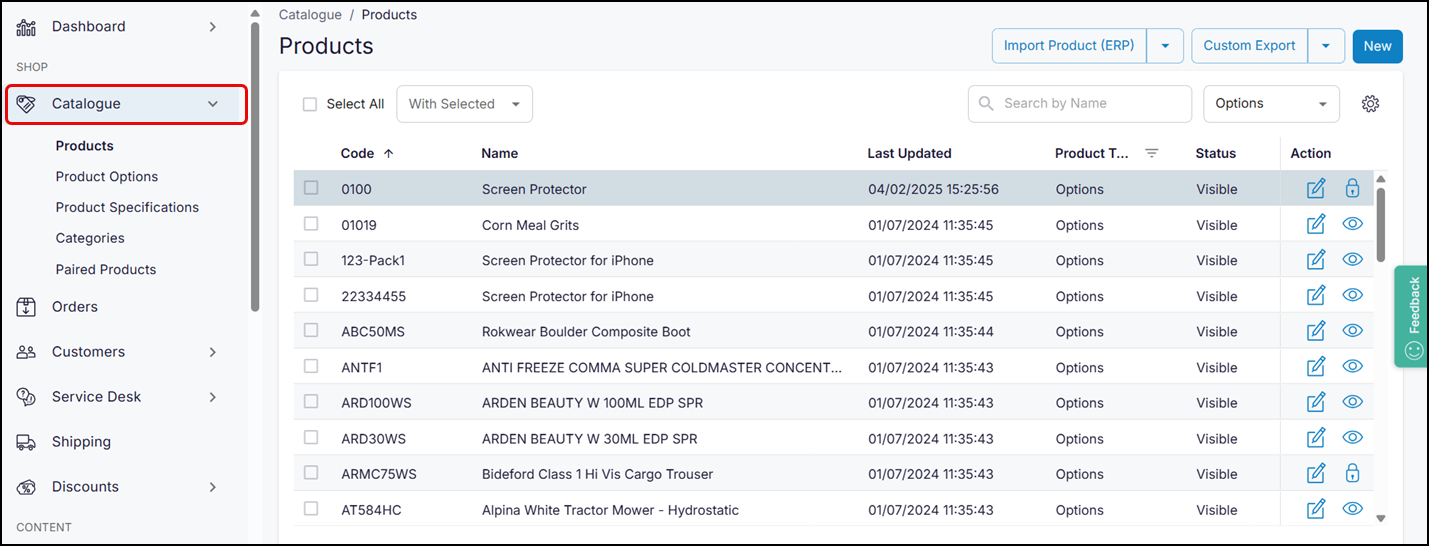
Select Catalog on the left-hand menu. This opens Product Administration, from where you can manage your product catalogue.
-
Select Categories on the left-hand menu. This opens the Categories listing screen.
-
Select Settings (

Product view
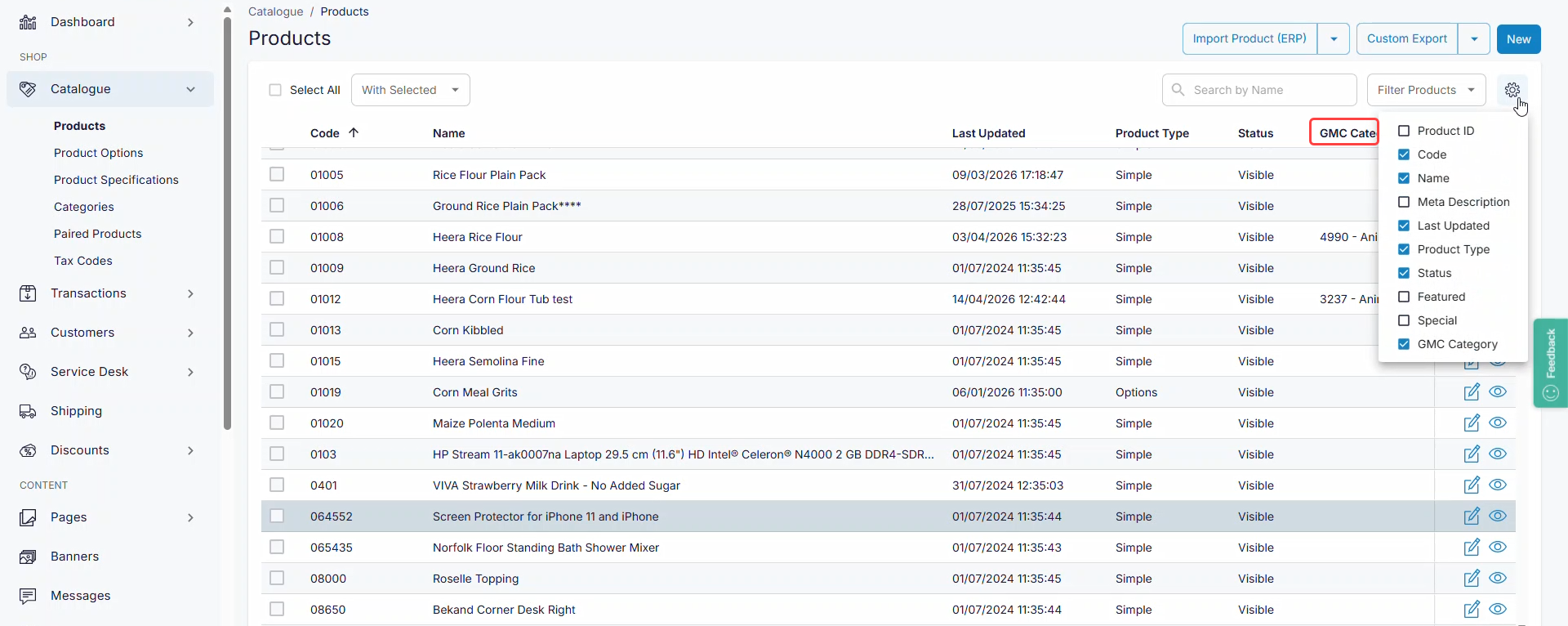
You can view which, if any, GMC category you have assigned a product to on the Products screen in the Management Interface.
Step by step
To view which GMC categories each product is currently assigned to:
-
Select Catalog on the left-hand menu. This opens Product Administration, from where you can manage your product catalogue.
-
Select Settings (
Update GMC categories using category management tools
Recommendation
We recommend using our category management tools to override mappings to the default GMC categories to suit your business needs. To update the GMC categories for multiple WebShop categories simultaneously, use the category import/export spreadsheet feature. Alternatively, to update GMC categories for products listed in a single category, use the category administration tool.
In both cases, remember that at least one product in the category is mapped to the final node of the primary category tree. See Integrating Google Shopping with WebShop for more information.
Use the category administration tool to update GMC mappings for products in that category
You can update a single product's GMC category from the Categories screen in the Management Interface.
Step by step
To override GMC’s automatic product categorization:
-
Select Catalog on the left-hand menu. This opens Product Administration, from where you can manage your product catalogue.
-
Select Categories. This opens the categories listing screen.
-
Select Edit (

-
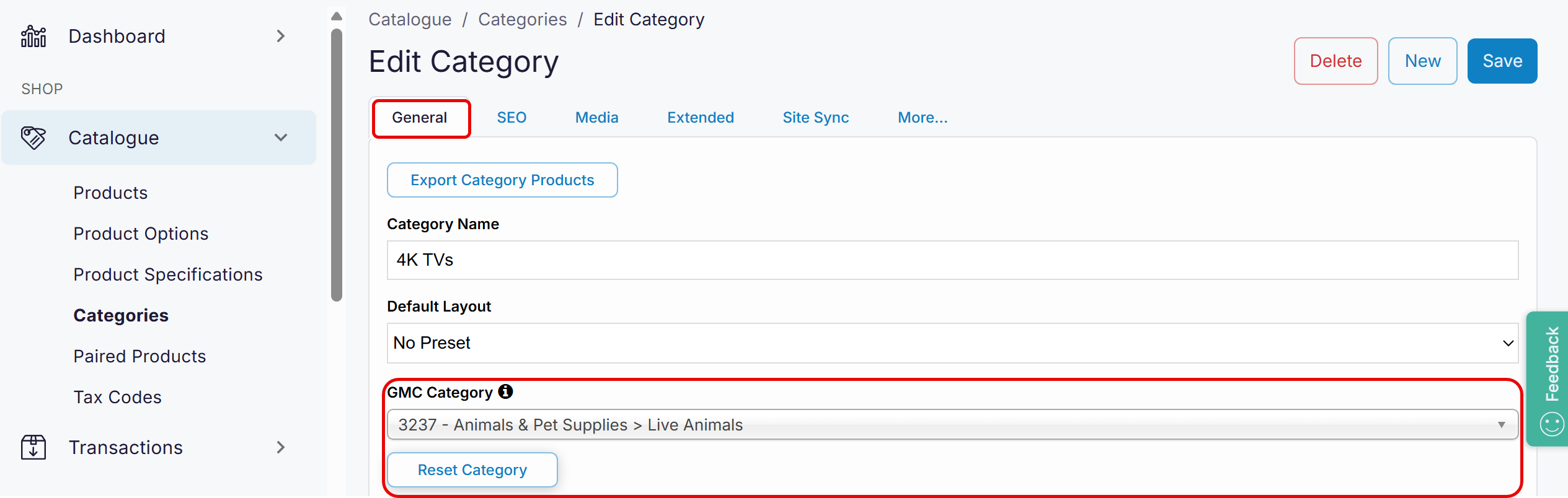
Select the General tab.
-
Select the category that you wish to assign this product to from the drop-down menu under GMC Category. The next time the product is exported via your Google Shopping product feed, the selected category is used, assuming that at least one product in the category is mapped to the final node of the primary category tree.
-
To reset a product to the default product category chosen by GMC’s product taxonomy, click Reset Category. The next time the product is exported via your Google Shopping product feed, the default product category is used.
Use the category import/export spreadsheet feature to update GMC category mappings for all products in included categories
By default, the primary category for each product listed in the WebShop catalog is contained in Category Tree 1. You can override or update the GMC category mapped to a WebShop category using the category import/export spreadsheet feature to update GMC categories in bulk. Remember that at least one product in the category is mapped to the final node of the primary category tree.
Step by step
-
Select Catalog on the left-hand menu. This opens Product Administration, from where you can manage your product catalogue.
-
Select Categories. This opens the categories listing screen.
-
Select Import from the dropdown menu on the top right of the product listing screen. This opens a drawer on the right of the screen.
-
Select “Select Category Spreadsheet” and locate the spreadsheet you wish to import. This imports your changes and updates the GMC mappings for applicable categories. The next time the updated categories are exported via your Google Shopping product feed, the selected GMC category is used.
Key points
-
In the exported spreadsheet, the GMC column is the last column, as shown.

-
The value of the GMC category field must be either the numeric ID or the full name of the GMC product category, as defined in the latest version of the GMC product taxonomy (see here1).
-
The GMC column is not included in the Google Shopping product feed unless there is at least one GMC category mapped to at least one product or category.
Update GMC categories using product management tools
Use the product administration tool to update a GMC mapping for a single product
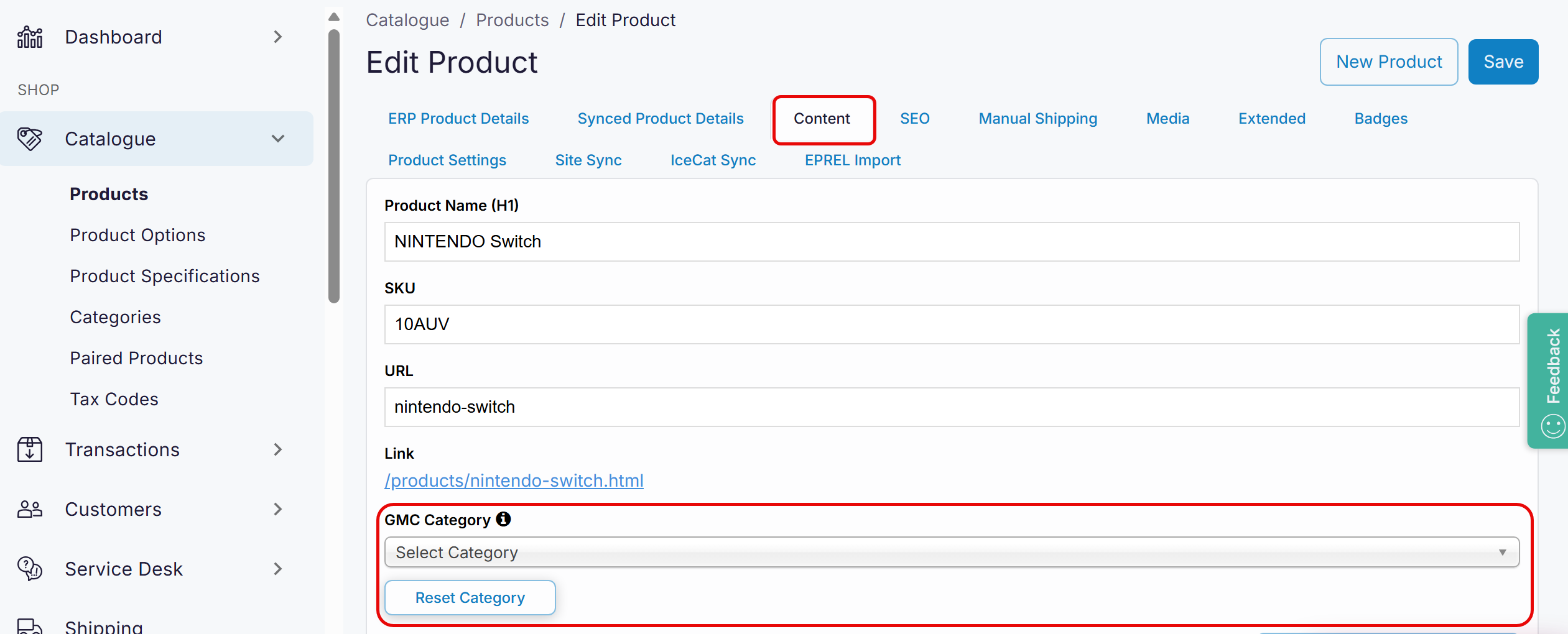
By default, the primary category for each product listed in your WebShop catalog is contained in Category Tree 1. Specifying a different GMC category from the default GMC category in Product->Edit Product will always apply regardless of where it is in a category tree. You can override or update the GMC category assigned to each product using the product administration tool.
Step by step
To override Google’s automatic product categorization:
-
Select Catalog on the left-hand menu. This opens Product Administration, from where you can manage your product catalogue.
-
Select Edit (
-
Select the Content tab.
-
Select the category that you wish to assign this product to from the dropdown menu under GMC Category. The next time the product is exported via your Google Shopping product feed, the selected category is used.
Note that you can set each product to be visible in a different category in WebShop and Google Shopping.
-
To reset a product to the default product category chosen by Google’s product taxonomy, click Reset Category. The next time the product is exported via your Google Shopping product feed, the default product category is used.
Use the product import/export spreadsheet feature to update GMC category mappings for multiple products
By default, the primary category for each product listed in your WebShop catalog is contained in Category Tree 1. Specifying a different GMC category from the default GMC category will always apply regardless of where it is in a category tree. You can use the product import/export spreadsheet feature to update the GMC categories for multiple products.
Step by step
To override Google’s automatic product categorization:
-
Select Catalog on the left-hand menu. This opens Product Administration, from where you can manage your product catalogue.
-
Select Import Products from the dropdown menu on the top right of the product listing screen. This opens a drawer on the right of the screen.
-
Select Product Spreadsheet and locate the spreadsheet you wish to import. This imports your changes and updates your product catalog. The next time the updated products are exported via your Google Shopping product feed, the selected category is used.
Key points
-
In an exported spreadsheet, the GMC column is found between the “Special” and “Category Tree” columns, as shown. You can add it anywhere in the product spreadsheet as long as it is before the “Category Tree” column.

-
The value of the GMC category field must be either the numeric ID or the full name of the GMC product category, as defined in the latest version of the GMC product taxonomy (see here1).
Example
You wish to change the GMC category of “Screen Protector” to “264 - Electronics > Communications > Telephony > Mobile Phone Accessories”.
In the product spreadsheet, add a “GMC Category” column before the “Category Tree” column, locate the product you wish to update, and add either “264” or “264 - Electronics > Communications > Telephony > Mobile Phone Accessories“ as the value of the GMC category for that product. Save and import the product spreadsheet.
Related content
-
How to set up an integration between Digital Commerce and Google Shopping - Deprecated.
-
Why is the connection between WebShop and the Google Shopping merchant account not established correctly? - Deprecated.
References
1 Google Product Taxonomy Version: 2021-09-21