
Purpose and scope
Experlogix Digital Commerce’s integration with Google Merchant Center (GMC) allows you to create a product feed directly from your WebShop for inclusion in Google Shopping’s online storefront. You can set up custom labels in Google Merchant Center, which allows you to further segment your Google Shopping product feed to suit your business needs.
A custom label in Google Merchant Center is an additional attribute in your product feed. It allows you to further segment your product feed to suit your business needs. Google Merchant Center supports five custom labels (custom-0 to custom-4). You can set up custom labels for your product catalogue by mapping fields in the product and pricing tables in the Management Interface. Once activated, these additional custom labels are included in your product feed to Google Merchant Center.
This article provides a step-by-step guide on how to set up custom labels in Google Merchant Center.
This feature is only available as part of the Digital Marketing SmartPack. Contact our sales team for more information.
Introducing terms and concepts used in this article
|
Term |
Definition |
|---|---|
|
(GMC), a service offered by Google that allows you to add your product information to Google. Once this information is uploaded to Google, the service makes it available to your customers when they search for your products using Google. |
|
|
Product feed |
a structured description of your products that can be shared with other channels. |
Step by step
Assumptions
-
You have an existing integration between Experlogix Digital Commerce Platform and Google Merchant Center.
-
Your Google Shopping product feed has been set up.
-
Any costs associated with Google Merchant Center are your responsibility.
-
You have logged into the Management Interface.
A custom label in Google Merchant Center is an additional attribute in your product feed. It allows you to further segment your product feed to suit your business needs. Google Merchant Center supports five custom labels (custom-0 to custom-4). You can set up custom labels for your product catalogue by mapping fields in the product and pricing tables in the Management Interface. Once activated, these additional custom labels are included in your product feed to Google Merchant Center.
-
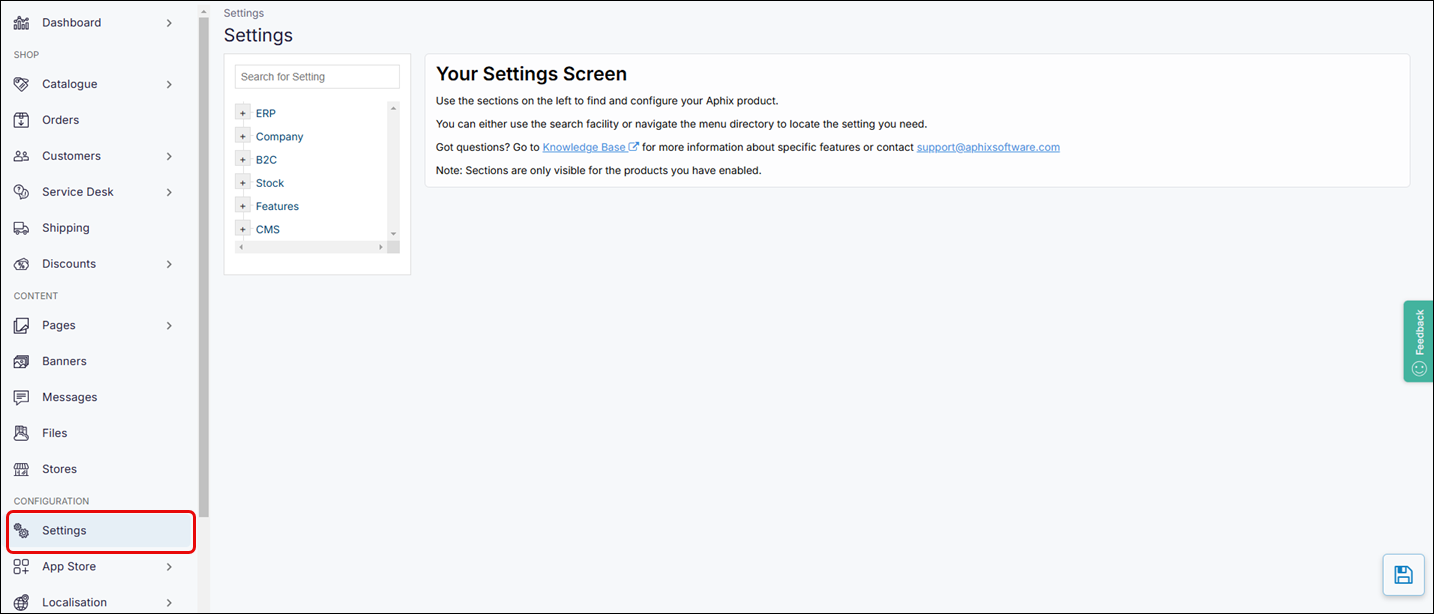
Select Settings on the left-hand menu . This opens the configuration area of the Management Interface.
-
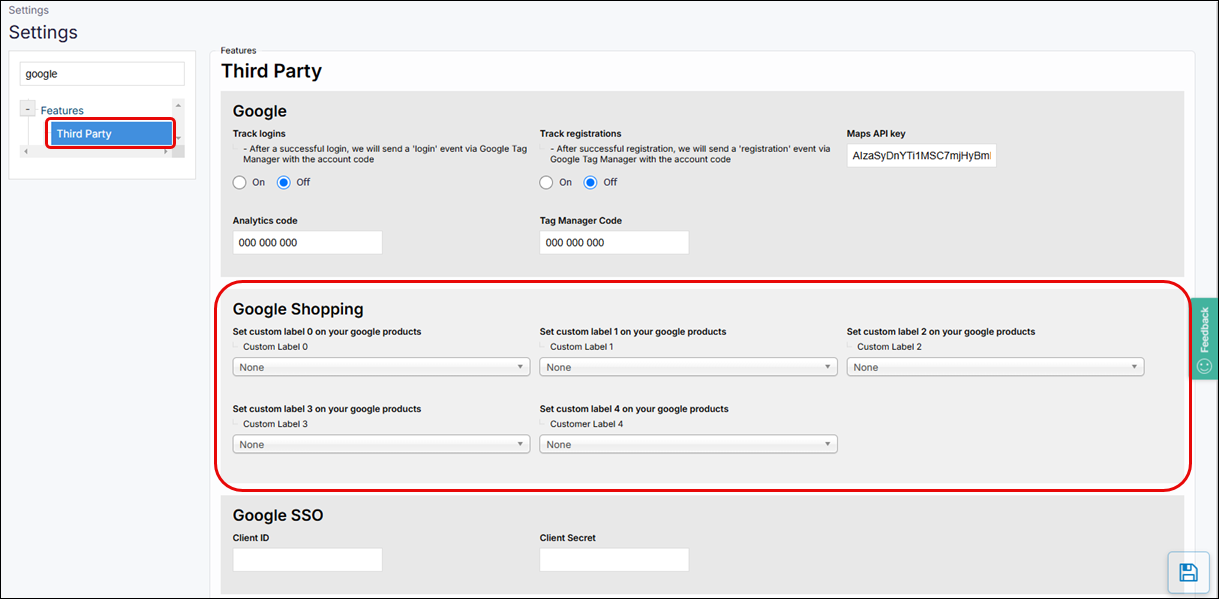
Locate the setting by searching for “Google“ or browsing the directory to Features → Third Party.
-
Scroll down the section labelled Google Shopping, as shown:
-
Map each Custom Label to a field in the product and/or pricing table.
-
Select Save. This saves your changes. The next time your Google product feed is exported, the additional custom labels will be included and applied to your products.