
Purpose
-
To explain how to update a product status to make it invisible.
Introducing terms and concepts used in this article
|
Term |
Definition |
|---|---|
|
Category |
a class that contains one or more products from your product listing. |
|
Enterprise resource planning |
(ERP), a collection of your critical business operating systems, such as product, stock levels, financial, customers, suppliers and so on that run on the same platform. |
|
Product code |
(SKU), the unique code for the product. |
More information
A product is invisible if the status of the product has been set to "Invisible" in Management Interface. You may have also configured customized rules per customer for WebShop, SalesRep and PocketShop that prevent a product being visible.
Note that you can not delete products from your product catalogue since if they are deleted, historical orders and invoices are not displayed correctly.
How do I verify a product's status?
View
-
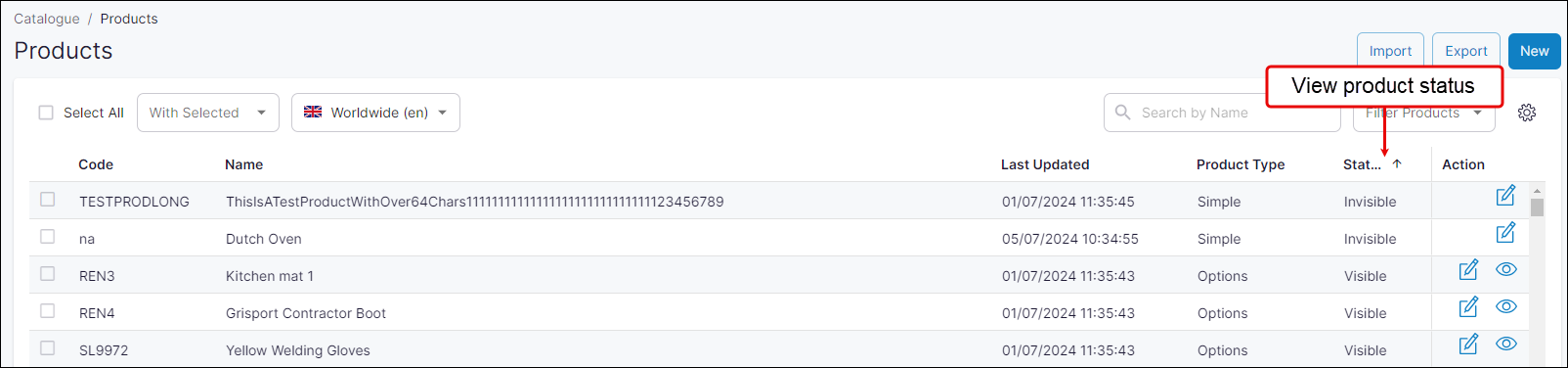
Open Product Administration in Management Interface.
-
Search for the product using their name or product code. The product's status is listed as Visible or Invisible under Status.
How do I update a single product's status to Invisible?
Update
-
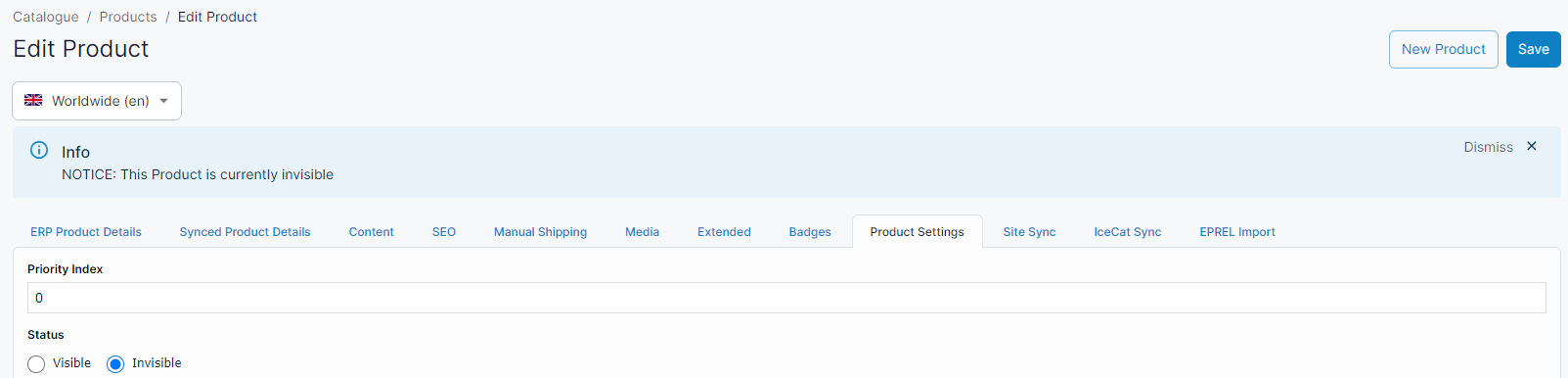
Select Edit (under Action) on the product listing page for the product you wish to update.
-
Select Product Settings tab.
-
Change Status to Invisible.
-
Click Save.
Once a product’s status is Invisible and there is a price associated with it in your ERP, your customers are able to order in through your WebShop.
How do I bulk update a product's status to Invisible?
Update
Use our spreadsheet import tool to bulk update multiple product status. The spreadsheet template has the following fields

-
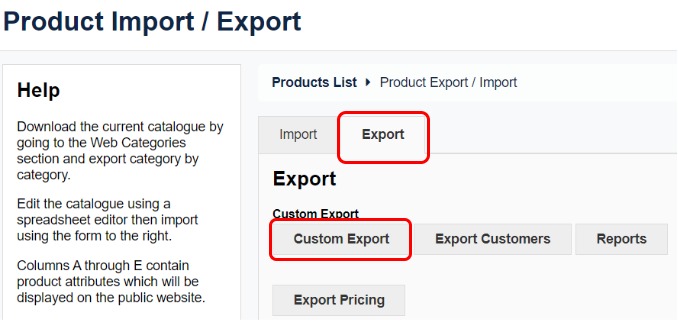
Open Import/Export in Management Interface.
-
Select the Export tab.
-
Download a spreadsheet of your existing products, using Custom Product Export.
-
Update the product's status to Invisible, and save your changes.
-
Return to Import/Export to Management Interface.
-
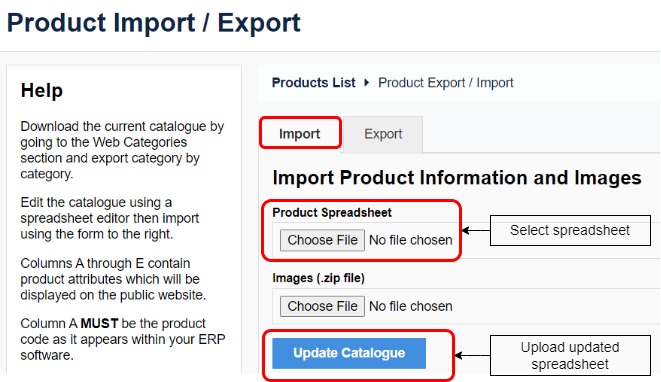
Click Choose File under Product Spreadsheet, select your updated spreadsheet and click Open.
-
Click Update Catalogue. This imports the updated product spreadsheet, and updates the product status.
Troubleshooting tips
Remember:
-
The columns in the spreadsheet are in a specific order. Do not move any column to another location. Moving columns results in a failed import of your product data.
-
You can delete a column without affecting a successful import of your product data.
-
Always use the following status: "Visible" or "Invisible". Incorrect spellings, including not using a capital "V" or "I", results in a failed import.
-
Remove all white spaces from the start or end of any content that you add since white space results in a failed import. For example, the product code "12345" is processed differently to the product code "12345 " or " 12345".
-
In particular, should you accidently create a new category by failing to remove a while space (for example, "goods " instead of "goods"), a new category is created, and the product listed on the spreadsheet is moved from the old category to the newly created category. It appears that you have duplicate categories in your WebShop.
-
Check that there is a price associated with the product. Products must have a price greater than zero for them to be visible.
-
Check your product name for special characters. Only products using supported special characters are visible.
-
Check if there are products in each category. An empty category is not visible.
Key points
-
Check your product’s status in Product Administration in Management Interface.
-
You can update a product’s status either individually or in bulk
-
When using a product spreadsheet to bulk update product data, be sure that
-
the columns are in the correct order,
-
you have checked case sensitivity, misspellings and verified there are no white spaces either before or after content in each field.
-
-
Remember never delete a product from your catalogue since its deletion means that historical orders and invoices are not displayed correctly.