
Layout
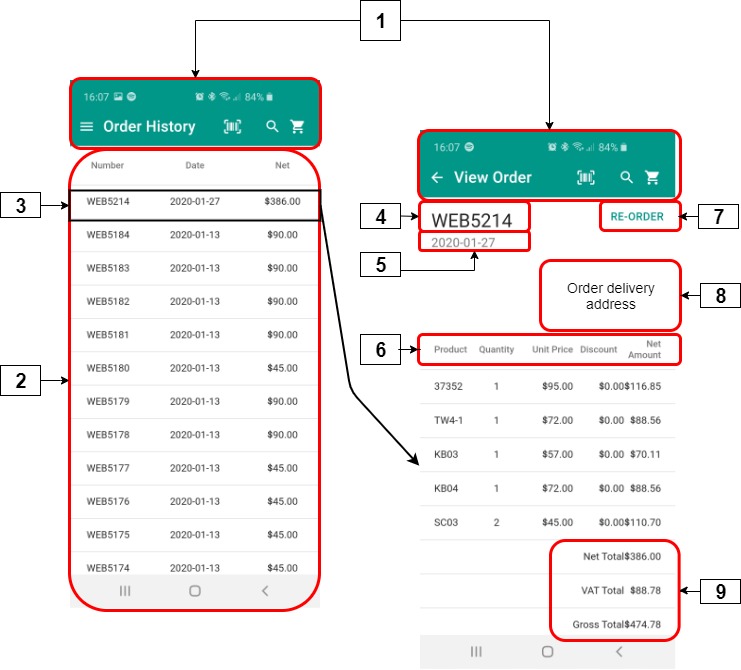
Selecting 'Order History' opens a list of recent orders. This information is extracted from your ERP and cannot be edited within PocketShop.
|
|
User interface element |
Name |
Description |
|---|---|---|---|
|
1 |
Top bar |
Order history |
Contains the set of options available on all PocketShop screens. |
|
2 |
Card |
List of orders |
Contains a list of recent orders, under the following headings:
|
|
3 |
Button |
One order |
Contains a link to an order listed on the order history screen. Click on the order to display information associated with it. |
|
4 |
Text |
Order number |
Contains the order number |
|
5 |
Text |
Order date |
Contains the date of the order |
|
6 |
Text |
Table headings |
Headings, under which are a full list of products (code, quantity, unit price, discount and net amount) contained in this order. |
|
7 |
Button |
Re-order |
Allows you to add to or replace the contents of your shopping cart with the list of products contained in this order. Read how to re-order an existing order. |
|
8 |
Text |
Delivery address |
Contains the “Ship-To“ address |
|
9 |
Text |
Order totals |
Contains the order’s net total, VAT amount and gross total |
Retrieving and storing data
Key points
-
Data is retrieved from your ERP when you log in initially. The data is stored locally within the PocketShop application.
-
Data is retrieved from your ERP each time you select this option. The data is then stored locally within the PocketShop application.