
Layout
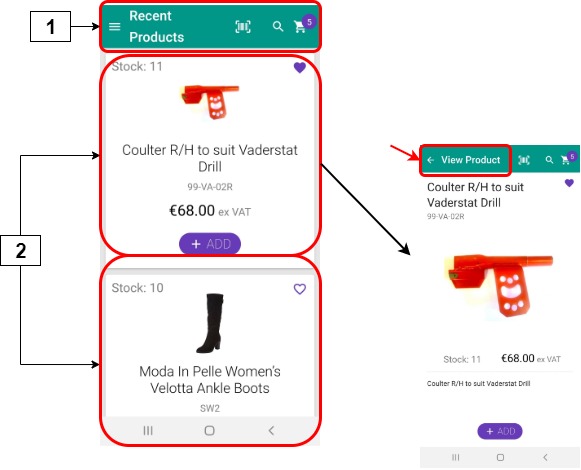
Selecting Recent Products displays a list of recent products from your most recent orders. Recent sales data is extracted from your ERP, and a list of recent products is created. The associated product details are displayed for each recently ordered product. This information can not be edited within PocketShop.
|
|
User interface element |
Name |
Description |
|---|---|---|---|
|
1 |
Top bar |
Recent products |
Contains the set of options available on all PocketShop screens. |
|
2 |
Card |
Product details |
Contains product details, including the product code, up to four images, a description, and the price. Select the product card to change it to full-screen mode. Select View Product, indicated by the red arrow in the screenshot, to return to the smaller screen size. Select ADD to add the product to your shopping cart. |
Retrieving and storing data
Key points
-
Data is retrieved from your ERP when you log in initially. The data is stored locally within the PocketShop application.
-
Data is retrieved each time you open the Recent Products screen.
-
Data retrieved is based on all recent products purchased across all Digital Commerce products, including PocketShop, WebShop and SalesRep.
SAP Business One
|
PocketShop field name |
SAP B1 Table |
Calculated value |
SAP B1 Tab | Field |
|---|---|---|---|
|
Product code (SKU) |
Item Master Data |
|
General area | Item No. |
|
Product images |
Item Master Data |
|
Remarks | camera (bottom right of screen) → add image from folder1 Constraints
|
|
Product description |
Item Master Data |
|
General area | Description |
|
Pack size |
Item Master Data |
|
Sales Data | Quantity per Package |
|
Price |
Item Master Data |
|
|
|
Stock number |
Item Master Data |
Calc value By default, it is calculated as the difference between “stock” and “committed” values retrieved from SAP Business One. If necessary, it can be calculated as “stock” - (“committed” + “ordered”) |
Default: [Tab - Inventory] | Stock Default: [Tab - Inventory] | Committed Optional: [Tab - Inventory] | Ordered |
1 SAP Business One set up: Ensure that the path for your images has been defined before you add any it.
2 The Unit Price or the price in the Price List is the list price that is displayed. However, pricing for each item is affected (in this order of priority) by whether:
-
it is added to a Price List [Item Master Data → General area | Price List],
-
it is listed with a Special Price for specific Business Partners [Modules → Special Prices],
-
it can have Period or Volume Discounts applied to it [Modules → Period and Volume Discounts].