
Screen layout: Workflows
Introduction
The Workflows screen gives you control and flexibility over creating, scheduling, executing, and troubleshooting tasks that run regularly on the Experlogix Digital Commerce platform.
Read Understanding Workflows in the Management Interface for more information about what Workflows are and how they work.
How it fits together
The Workflows screen gives you control and flexibility over creating, scheduling, executing, and troubleshooting tasks that run regularly on the Experlogix Digital Commerce platform.
Menu options are:
All Workflows
Monitor
By default, the All Workflows screen is displayed when you select Workflows.
All Workflows
The All Workflows screen displays a list of all workflows.
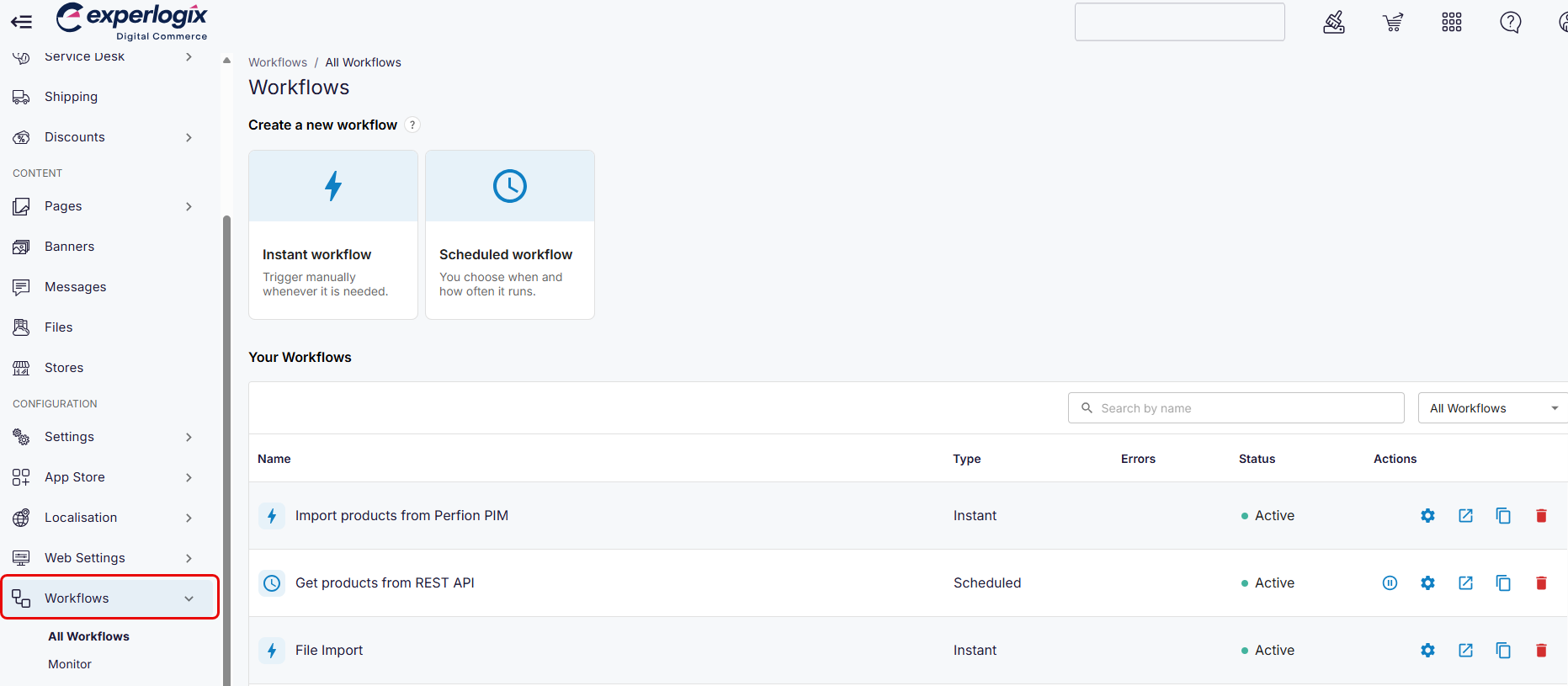
Actions available
Create a new workflow, either an instant or a scheduled workflow.
View a list of existing workflows.
Search for a workflow.
Filter workflow by workflow type.
Actions available for each workflow
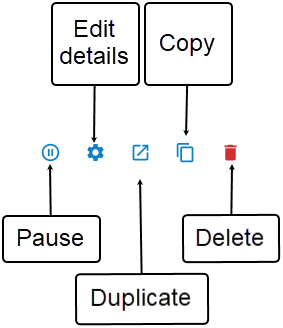
Pause a workflow.
Edit details: update the name, description, and schedule frequency.
Edit workflow steps in Workflow Editor.
Duplicate a workflow.
Delete a workflow.
Monitor
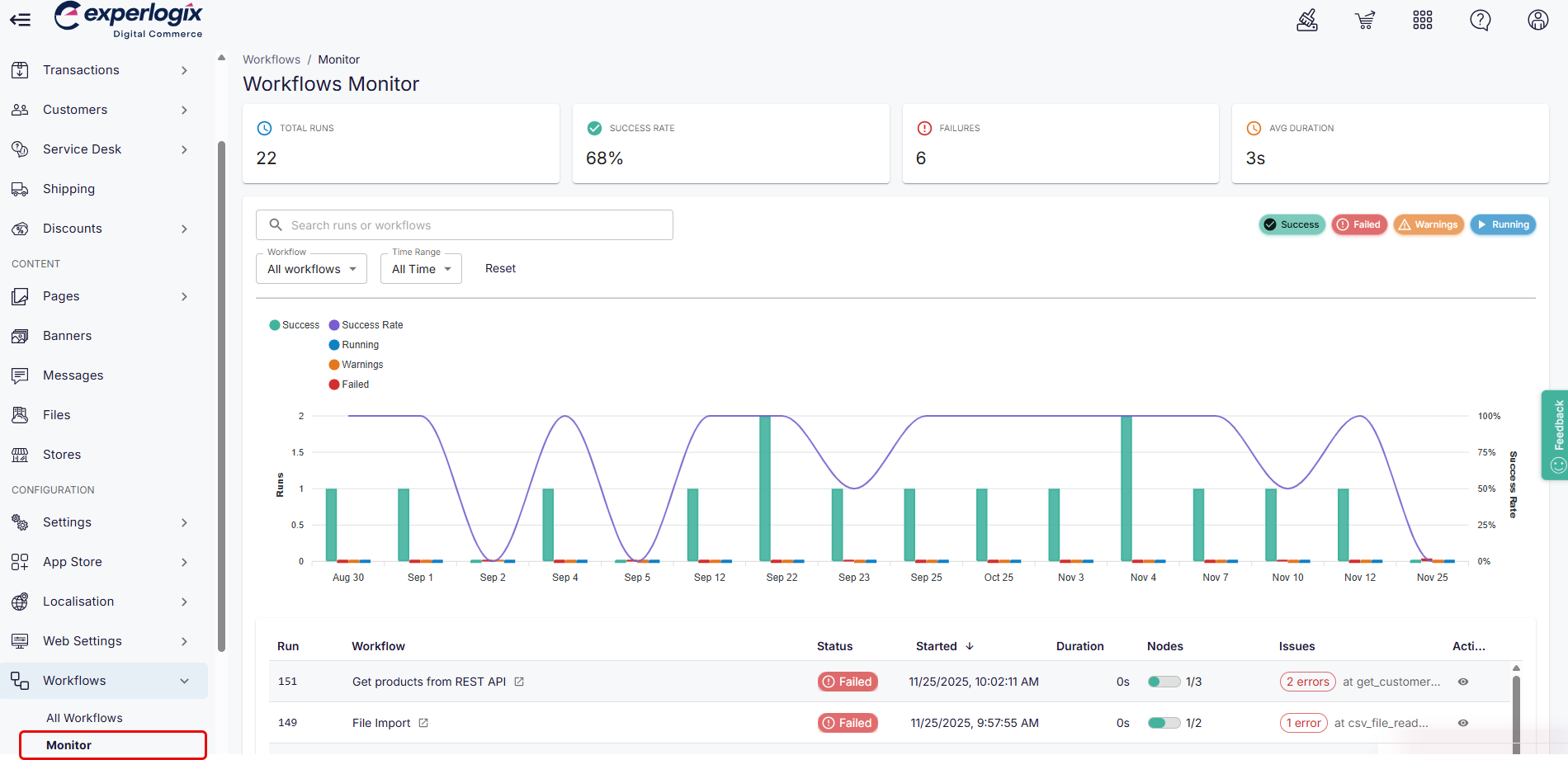
Actions available
View workflow metrics, including the total runs, success and failure rate, and more.
Search and filter for information about a specific workflow.
View details and status for each workflow.
Select the view icon to the right of the workflow to view additional low-level details for that workflow.